# Greetings, from Looter 🕹

***

<figure><img src="/files/xZH47wVwhKjaM7ykU9GS" alt=""><figcaption></figcaption></figure>

***

{% code overflow="wrap" fullWidth="false" %}

```ada
// Looter is a multi-chain purchasing tool and listing sniper. Full Wallet Control and Language Support, Lightning Fast Limit Orders, Market Orders and Listing Sniper - on Ethereum, Solana and Avalanche, we have it all! Try it for yourself!
```

{% endcode %}

***

## Introduction 🕹

Want to learn how to use Looter? This guide will show you everything you need to know, forget DEX's and other trading tools - Looter will be your go-to before you know it 😉&#x20;

{% hint style="info" %}
Join our Telegram news & information channel  -   <https://t.me/looter_ai>   🎮
{% endhint %}

## Telegram Links ⚡️

{% embed url="<https://t.me/looter_ai>" fullWidth="false" %}
Join our News & Information Channel for frequent news about production and development! ⚡️
{% endembed %}

{% embed url="<https://t.me/looter_discussion>" %}
Join our Discussion Channel to speak with users, and solve any unanswered questions you may have! ⚡️
{% endembed %}

{% embed url="<https://t.me/looter_ai_bot>" %}
Start using Looter now! Press this link to start using the bot and it's wonderful features on Telegram! ⚡️&#x20;
{% endembed %}

## Get Started ✅  <a href="#get-started" id="get-started"></a>

Lets begin by starting Looter on the Telegram app and getting familiar with the controls 🙂&#x20;


# Getting Started

Lets open the bot on Telegram and help you get familiar with all the wonderful things Looter can do for you 😉

***

[`Use this link below or click this header to open the bot on Telegram`](https://t.me/looter_ai_bot)`!`

{% embed url="<https://t.me/looter_ai_bot>" %}

## First Impressions 👀&#x20;

***

<figure><img src="https://i.gyazo.com/dd3477983c7a61ee154f3a7af2bfceeb.png" alt="" width="563"><figcaption></figcaption></figure>

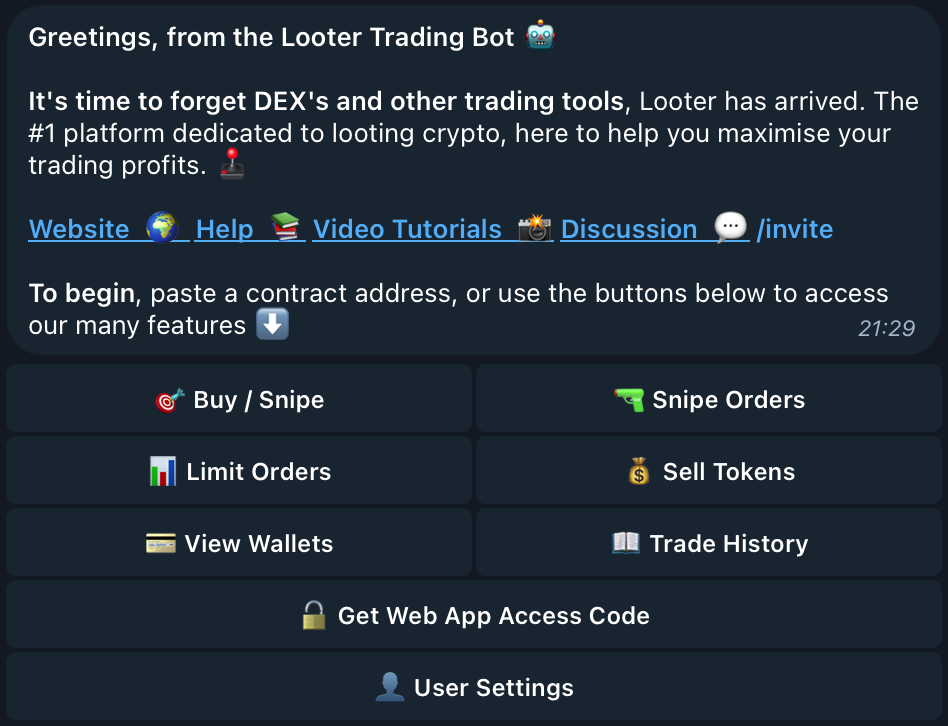
**Upon using /start,** you will be greeted with this message, which includes quick access links to our docs and discussions telegram channel for any assistance you may need! ✅ \
\
When the bot is launched for the very first time, **5 fresh Ethereum wallets** are created for you to use for buying, selling and sniping with the bot! ⚡️&#x20;

The 5 Ethereum wallets can be **replaced, regenerated and exported** at anytime you wish 😎

***

## Home Page 🏠&#x20;

<mark style="color:orange;">`You can access the home page at any time by using the command /home`</mark>

Features to choose from include **Buy / Snipe**, **Snipe Orders**, **Limit Orders**, **Sell Tokens**, **View Wallets, Trade History** and **User Settings**. This initial page of buttons will be the home of operations on how to navigate towards whichever feature you'd like to use.&#x20;


# Common Questions

Some frequently asked questions that have been explained in detail to help assist you with any issues or understanding with terminology. 🙋‍♂️

***

## 👨‍💻 What is Listing Sniping?

Listing Sniping is a trading method used to maximise profits on launching projects/tokens. The idea behind Listing Sniping is once a project or token with popularity adds liquidity, a swarm of users will begin to buy, therefore driving up the price massively. To make the most out of those price increases, ideally, you want to be the first person to make a buy order so you can maximise your profits after the tokens price sky rockets. This is quite hard to do manually, which is why we have bots that constantly scan the Ethereum mempool, looking for the liquidity add transaction, and once it confirms it immediately sends a buy transaction. If you would like to learn how to use Looter's sniper, head over to the Snipe Orders 🎯 section of this guide!&#x20;

***

## 👨‍💻 What is a Limit Buy Order?

Limit Orders are used in all different types of trading. It involves setting a price you may have in mind that you believe a token will hit, and buying it once the token hits this price. This is all done automatically with Looter and controlled from Telegram. No need to constantly stare at token charts looking for the right price to buy, simply set your desired buying price and the amount you wish to buy, and Looter will do all the work for you! To learn more on how to schedule a limit order with Looter, head over to the Limit Orders section on this guide!

***

## 👨‍💻 What is a Limit Sell Order?

Limit Orders are used in all different types of trading. It involves setting a price you may have in mind that you believe a token will hit, and selling it once the token hits this price. This is all done automatically with Looter and controlled from Telegram. No need to constantly stare at token charts looking for the right price to sell, simply set your desired selling price and the amount you wish to sell, and Looter will do all the work for you! To learn more on how to schedule a limit order with Looter, head over to the Limit Orders section on this guide!

***

## 👨‍💻 Can I import my own wallet into the bot?

Yes, you can import any pre-existing wallets you have into the bot. To do this, head over to the Manage Wallets section of the bot and select which Wallet (W1, W2, W3, W4, W5) you would like to replace with your own. Once selected, use the Import button to import your own private key and use your personal wallet with the bot. For a more in-depth guide with images, refer to the Managing Wallets 💼 section of this guide!

{% hint style="info" %}
Please note that the Looter team does not have any access to viewing private keys, this also applies to removing wallets via regeneration or importing - we are unable to retrieve or access private keys at any time so note them down. ⚠️&#x20;
{% endhint %}

***

## 👨‍💻 Can I cancel a Limit Order or a Snipe Order?

Yes, you can cancel any orders you have made that aren't yet published to the Ethereum chain. To do this, head to the Limit Orders or Snipe Orders section of the bot and you will be greeted with all current pending Limit/Snipe Orders you have set. From here, you can edit and delete them if you have changed your mind about an order.&#x20;

***

## 👨‍💻 How does the Miner Tip (Bribe) work? <a href="#how-does-bribe-tip-work" id="how-does-bribe-tip-work"></a>

Adding a miner tip onto your sniping transactions will assist in getting quicker transaction confirmation from the miners. Using additional ETH on top of the Ethereum gas fees makes your transaction a priority to the miners and it will be picked for confirmation over other transactions with lower fees. Please note it is not mandatory and feel free to use the bot without using this feature, however it will help in getting those very important first transactions in blocks when liquidity is added to a token!&#x20;

***

## 👨‍💻 How does Looter's Dynamic Tipping work?

Dynamic Tipping is a revolutionary feature to the market for sniping, only available exclusively with Looter, the bot with the best tech ;) ! Also known as Tip Saving, it works by calculating the  total block's tip before the block is even mined and dynamically adjusts the tip you configured to achieve the best possible transaction placement among other snipers and other bots. This is all done automatically with no extra configuration passed down to the user and the final bribe amount will not exceed your original selection! Pretty neat right 😉&#x20;

***

## 👨‍💻 How does Slippage work?

Slippage is the difference between the expected price of an order and the price when the order actually executes. With crypto being so volatile, the price of an asset can fluctuate fast depending on trade volume and the amount of liquidity - if the liquidity is low for a token, the price will be fluctuating much faster. Slippage allows for a percentage window of success for a transaction, setting a slippage percentage will guarantee the order is received and executed within the percentage - if not, the order will cancel automatically as the price fluctuated over the given percentage.&#x20;

{% hint style="info" %}
Some tokens may have buy/sell transaction taxes embedded into their contract and this must be accounted for when setting a slippage percentage. Use the token's transaction tax + your desired slippage and that will be your final percentage.
{% endhint %}

***

## 👨‍💻 How does Max-Market Cap work?

The Max Market-Cap setting acts as a failsafe for the snipe transaction. If the market-cap of the token you are sniping exceeds your chosen amount before your snipe transaction has confirmed, it will revert and cancel - further preventing any possible losses. This is in place to prevent loss on a mass-botted listing where dozens of bots are targeting one listing and the price gets inflated immediately after liquidity is added.&#x20;

***


# Managing Wallets

Lets give you the rundown on managing your 5 wallets with Looter 💼

***

{% embed url="<https://www.youtube.com/watch?ab_channel=Looter_ai&list=PLH9BPUNGuM1z6rXp2OGTVvWe_7qw7Wxw-&v=MRh7C8C6q-8>" %}

***

<mark style="color:orange;">`To bring this up, press the "View Wallets 💼 " button on the main page.`</mark>

<div align="center"><figure><img src="/files/F6crRJUYdzI8wGMvmase" alt="" width="563"><figcaption><p>Click this button from the homepage to navigate yourself over to wallet management 👍 </p></figcaption></figure></div>
<div align="center"><figure><img src="https://i.gyazo.com/9f43a8b31cb7d84e3f6a92a94e3772b2.png" alt="" width="563"><figcaption></figcaption></figure></div>

***

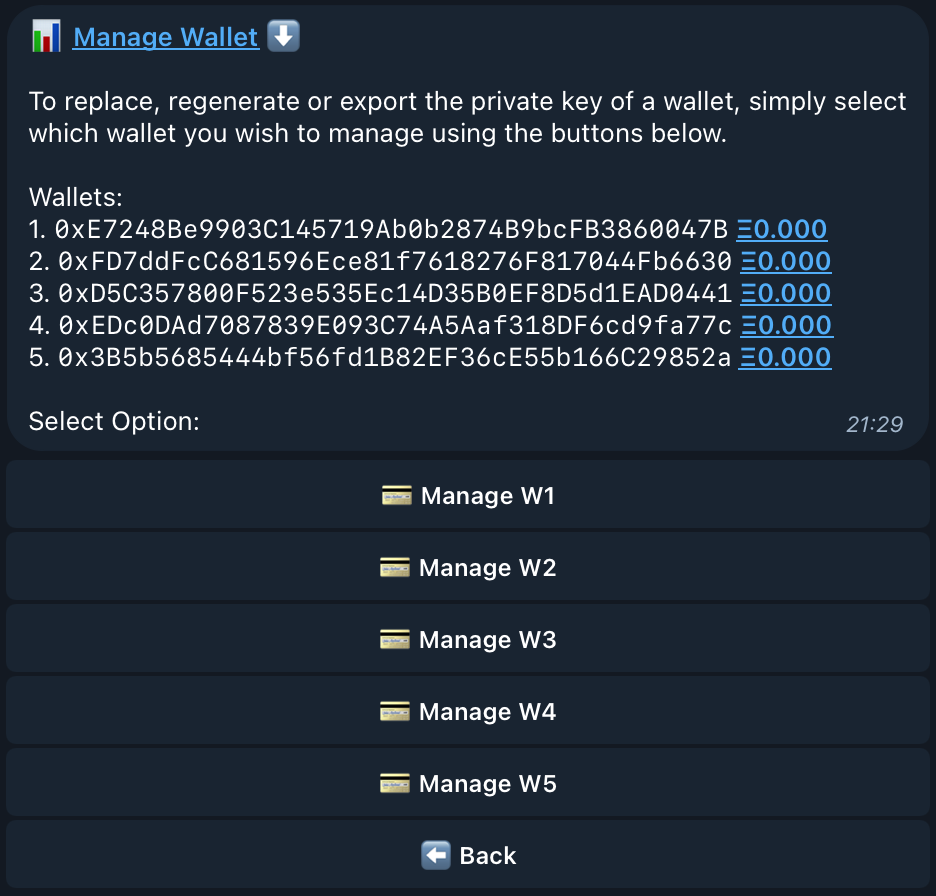
Here you can view your five different wallets, freshly generated when first launching Looter, along with their current Ethereum balance viewed on the **right**. Each address can be copied with simply **one click** on the address you wish to copy. 🖨&#x20;

Each of the five buttons represent management of one wallet, where you can import, regenerate, export the wallet of your choice and transfer your Ethereum balance, all from within the bot. 😉&#x20;

***

<div align="center"><figure><img src="https://i.gyazo.com/b77ecb7439610464b76b9456870af0c2.png" alt="" width="563"><figcaption><p>Select this button to manage Wallet 1 and view below to see how we can make changes to it.</p></figcaption></figure></div>

<div align="center"><figure><img src="https://i.gyazo.com/a0addb6bb6f52e16b2c753ef25b659af.png" alt="" width="563"><figcaption></figcaption></figure></div>

***

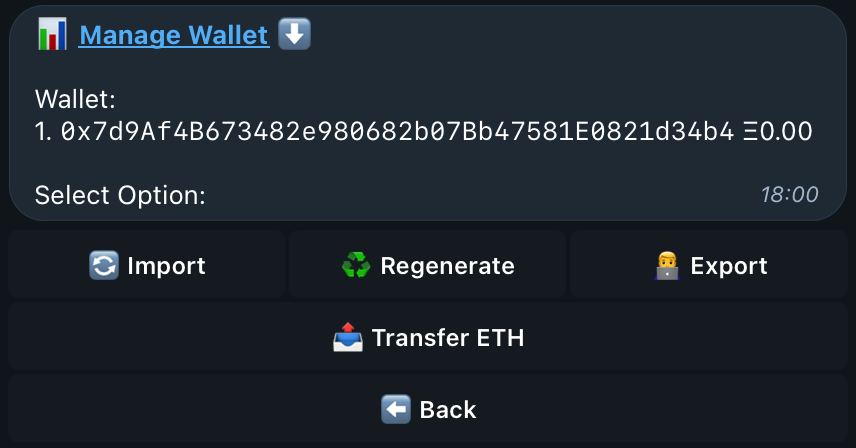
Wallet 1 has now been singled out and specific manage buttons become available, **Import, Regenerate, Export, Transfer ETH**.&#x20;

{% hint style="warning" %}
Once a wallet has been imported or regenerated, the old wallet won't be accessible or retrievable. Make sure to export and note down private keys beforehand.
{% endhint %}

***

## 🔄 Importing a Wallet&#x20;

<div align="center"><figure><img src="https://i.gyazo.com/95e221d90e24a0c9f9db6388b3de9fd9.png" alt="" width="563"><figcaption></figcaption></figure></div>

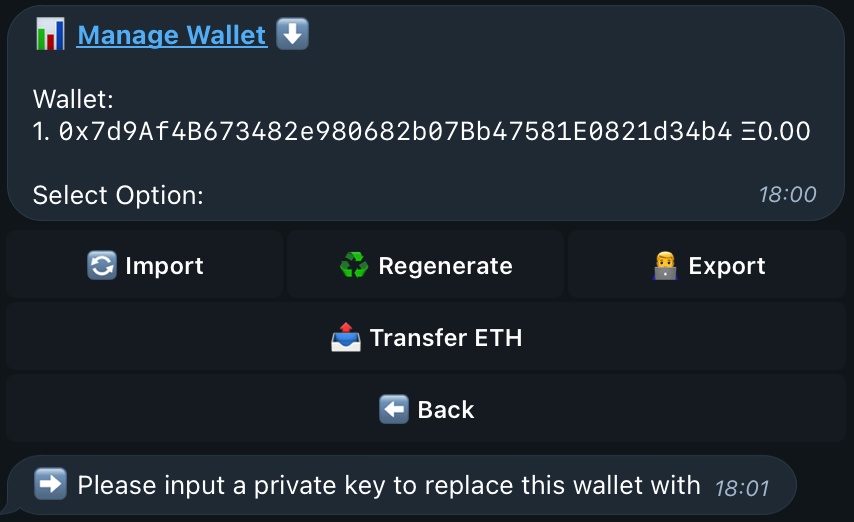
Pressing on **Import**, will return this message, allowing you to seamlessly reply to Looter with a private key of your own. This will **import your wallet** to the bot, replacing it with the wallet you had previously selected. **It's as easy as that!** Once you have replied with the private key, Looter will swap out the old wallet out for the one you supplied and you are then free to **buy, sell and snipe using your own wallet!** 😎&#x20;

***

## ♻️ Regenerating a Wallet

<div align="left"><figure><img src="https://i.gyazo.com/bd26e61c125e21cf981a6e63b9e9070f.png" alt=""><figcaption><p>Warning message before regenerating as wallet will be lost if not exported </p></figcaption></figure> <figure><img src="https://i.gyazo.com/281794ccc165139f2eaa318c9cb1d95a.png" alt="" width="188"><figcaption><p>Successfully regenerated after continuing</p></figcaption></figure></div>
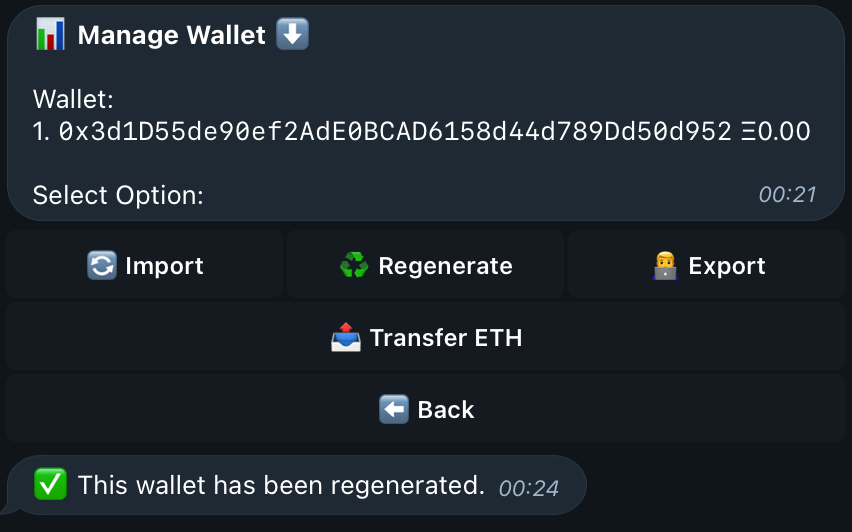
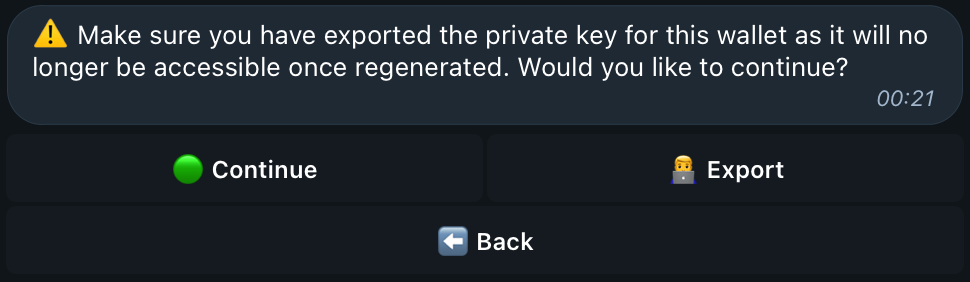
Pressing on **Regenerate**, will first return a small **warning** message. As shown and explained above, the previous wallet won't be retrievable once the wallet has been regenerated as it creates a **completely fresh wallet for you to use** and removes the old one. If you have exported the private key already or don't need it because you don't use the wallet, go ahead and press Regenerate and the process will complete! 😎&#x20;

***

## 👨‍💻 Exporting a Wallet

<div align="center"><figure><img src="/files/7LcAP5N7c3hGCGOIMlnp" alt="" width="563"><figcaption></figcaption></figure></div>

Pressing on **Export** will return the private key for the wallet you have selected. This message will only stay for a **few seconds** so be quick to copy it!&#x20;

{% hint style="info" %}
For addresses and private key messages, we utilise Telegrams 'code text' feature, this means with just one click on an address or private key it will be copied to your clipboard instantly. &#x20;
{% endhint %}

***

## 📤 Transferring Ethereum

<figure><img src="https://i.gyazo.com/e78a4b79d2665e445545a22e34a6599d.png" alt="" width="563"><figcaption></figcaption></figure>

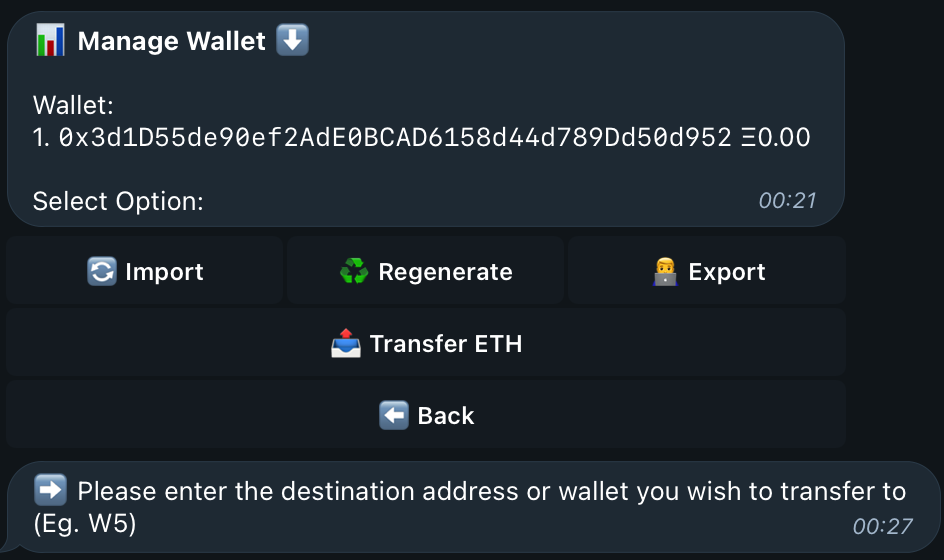
Pressing on **Transfer ETH** will will return this message, where you can supply an address or one of your imported wallets to transfer Ethereum. If you want to transfer **between wallets** in the bot, simply reply with **"W2"** for example, if you wish to send a transfer to Wallet 2 within the bot. After providing the address, provide the amount of Ethereum you wish to send and the transfer will execute!&#x20;

***

Now you have mastered how to manage and use the wallets within Looter, lets put them to some use and learn how to buy and sell tokens, and snipe 😉&#x20;


# Trading on EVM (ETH, ABS...)

Trading on EVM with Looter is quick and easy, check out the next pages to learn how!\
\
Supported EVM Chains:

* Ethereum
* Base
* Abstract
* Arbitrum
* Avalanche&#x20;


# Buying Tokens

Lets show you how to easily begin buying EVM tokens with Looter 💰

***

{% embed url="<https://www.youtube.com/watch?ab_channel=Looter_ai&index=3&list=PLH9BPUNGuM1z6rXp2OGTVvWe_7qw7Wxw-&v=UWZTqgLfpHQ>" %}

***

<mark style="color:orange;">`To start your token purchase, click the "🎯 Buy / Snipe" button on the main page or paste any token contract into the message box on any page.`</mark>

<figure><img src="https://i.gyazo.com/6ad110a92fe3898f5134879e45041cb0.png" alt="" width="563"><figcaption><p>Click this button from the homepage to begin a token purchase 👍 </p></figcaption></figure>

<figure><img src="https://i.gyazo.com/cb221865f6fb00d63b51e094fc442227.png" alt="" width="563"><figcaption><p>Provide the contract address of the token you wish to buy with this message shown above. 💰 </p></figcaption></figure>
***

## 📕 Placing a Buy Order

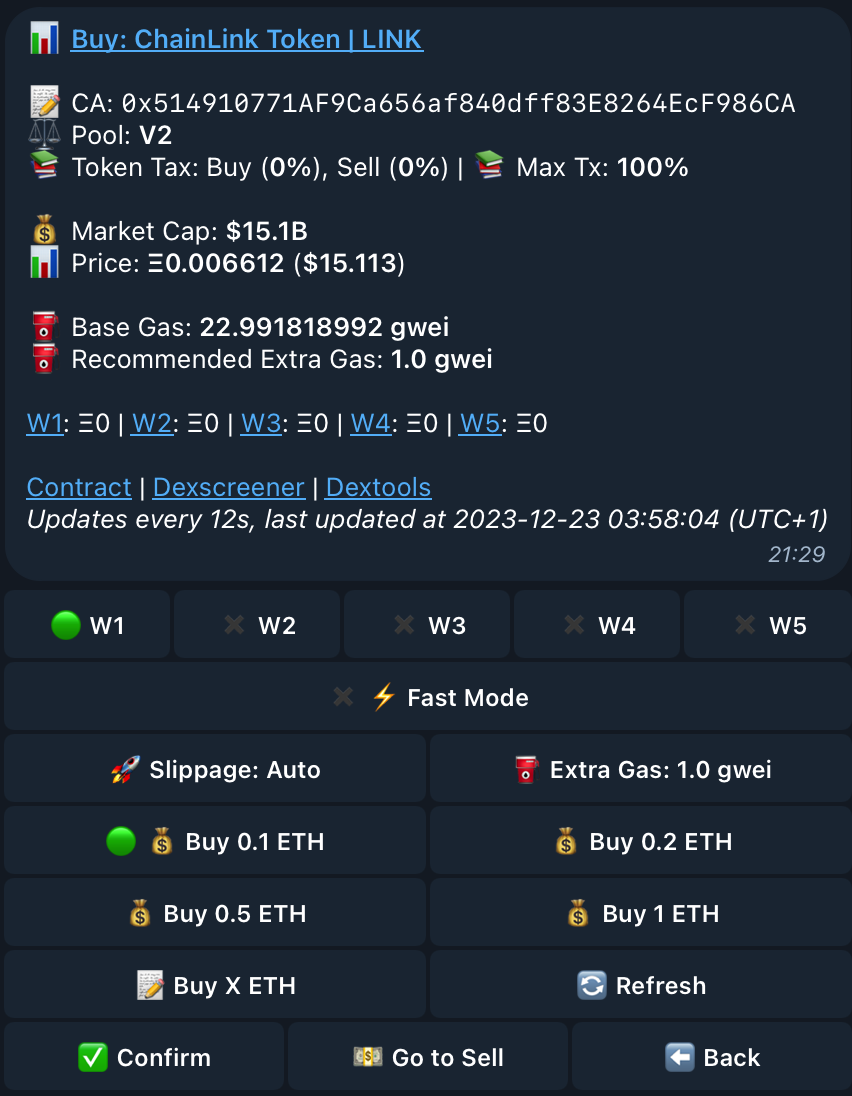
After providing the **contract address** of the token you wish to purchase, you will be greeted with this message below. This message will indicate to you all **relevant information** about the token you have provided, including: **Contract Address, Liquidity Pool Version, Buying and Selling transaction taxes, market cap and the current price.** All this information is updated and refreshed automatically every 12 seconds, the last refresh is viewable at the bottom of the message.

<figure><img src="https://i.gyazo.com/c3f78832afa5b9318ffb6e31f5a99014.png" alt="" width="563"><figcaption><p>Provided are also quick access links to view this token's contract on Etherscan, Dexscreener and Dextools 👍 </p></figcaption></figure>
{% hint style="info" %}
The tokens shown in the images on this document were used strictly for testing, do not copy or use any of the tokens shown without doing your own prior research. &#x20;
{% endhint %}

***

## 💼  Wallet Selection

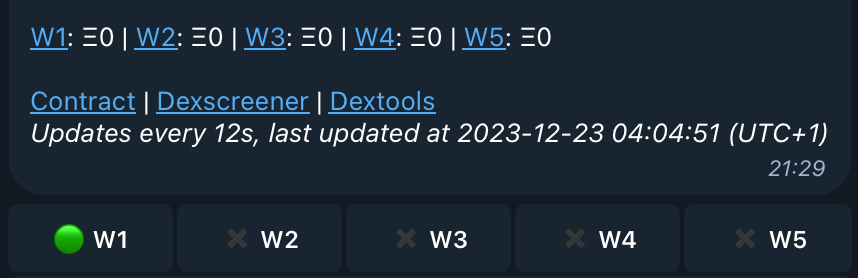
Multi-Wallet trading is supported! Purchasing from one or more wallets can be executed by selecting more than one wallet as shown below. Wallet balances are also viewable from this page!

<figure><img src="https://i.gyazo.com/a12e5e2f8d4050ed6caa233d2a0c9e27.png" alt="" width="563"><figcaption><p><br>The green icon is an indicator for that wallet being in use for this transaction, and the X is showing the wallet is not in use.</p></figcaption></figure>

***

## ⚡️ Expert Mode

True degens, you can now **ape into tokens even faster** with Looter! Expert Mode allows you to **instantly** purchase/snipe a token without having to mess around with UI and any settings! 😎

If you wish to use Expert Mode for buying and sniping, all you have to do is send the bot a message like this:

<figure><img src="https://i.gyazo.com/df4a23744ff7359b2a0bb0201420e53e.png" alt="" width="563"><figcaption><p>The message must be written in this format: Token Address/Link [Buy Amount] [Tip] 🫡 </p></figcaption></figure>

Priority Tip is optional, of course - if you are buying instead of sniping, a tip isn't needed! Looter will check for live liquidity on the token's pair and if found, a buy will be made, if not, a snipe will be queued!&#x20;

So for buys, simply enter the **contract address/link and the buy amount** to buy, and for snipes, the contract address with the **snipe amount and priority tip** amount 🫡&#x20;

{% hint style="info" %}
Please note that sending the Expert Mode buy message to the bot will buy instantly! So use with caution!! However, snipes can still be cancelled after you have used Expert Mode to queue a snipe.
{% endhint %}

***

## 🚀 Adjusting Slippage Setting

Slippage is automated by default, however if you wish to set your own slippage percentage - this can be done! Simply make the button selection and respond to the quoted message with your desired slippage percentage!&#x20;

<figure><img src="https://i.gyazo.com/89fe7bf8470024253afb65a687706fb2.png" alt="" width="563"><figcaption><p>Select the Slippage button on the left to make adjustments to your slippage percentage! 🚀 </p></figcaption></figure>

{% hint style="info" %}
Token transaction taxes must be accounted for when supplying your slippage amount, you can view the buy and sell taxes for this token on the page.
{% endhint %}

***

## ⛽️ Adjusting Priority Gas

Want your transaction to be picked up by miners quicker? Easy with Looter! The option is there to supply additional gas to your transaction, speeding up the time it will take for your trade to be mined and confirmed on-chain!&#x20;

<figure><img src="https://i.gyazo.com/89fe7bf8470024253afb65a687706fb2.png" alt="" width="563"><figcaption><p>Select the Extra Gas button on the right to make adjustments to your priority gas (optional) ⛽️ </p></figcaption></figure>

Base Gas and Recommended Extra Gas values are provided in the main message, as shown below. If you have no need for your transaction to be sped up, just ignore the extra gas button and continue on with your trading! However, if you wish for a super fast confirmation, you can supply the extra gas value yourself or use our pre-calculated priority amount! ⚡️&#x20;

<figure><img src="https://i.gyazo.com/fa4f83c64a28471e1af1f520fa4a0613.png" alt="" width="563"><figcaption><p>Along with the other values, these will update automatically every 12 seconds! ⛽️ </p></figcaption></figure>

***

## 💰 Customising Purchase Amount

Preset buttons are available for commonly used Ethereum purchase amounts, however you also have the option to customise your purchase amount in Ethereum value! Simply either select one of the preset buttons (0.1E, 0.2E, 0.5E, 1E) or select "Buy X ETH" to customise your purchase amount!&#x20;

<figure><img src="https://i.gyazo.com/628ce84ee7f90d266d961c73a2755b5e.png" alt="" width="563"><figcaption><p>Returned message when selecting "Buy X ETH" - reply with the amount of Ethereum you wish to use to buy 👍 </p></figcaption></figure>

***

## ✅  Executing the Buy Order

The final step is confirming! Executing the order is as simple as selecting on one of the provided value buttons or customising your desired amount in Ethereum value and then confirming the order with the button shown below!

<figure><img src="https://i.gyazo.com/c03faa8f5cba137846bccad5bfa5beab.png" alt="" width="563"><figcaption></figcaption></figure>

Here are also two additional options; Once you make a purchase, "Go to Sell" will appear and will take you directly to the sell page and the "Back" button will return you to the homepage!&#x20;


# Snipe Orders

Sniping works very similarly to buying, let's show you how! Unsure what sniping is? Head over to our Common Questions page for an in-depth description 👍

***

Sniping is currently supported on:&#x20;

* Ethereum
* Solana
* Base

{% embed url="<https://www.youtube.com/watch?ab_channel=Looter_ai&index=2&list=PLH9BPUNGuM1z6rXp2OGTVvWe_7qw7Wxw-&v=OWZrNADK67I>" %}

***

<mark style="color:orange;">`To begin executing and configuring a snipe order, select the "🎯 Buy / Snipe" button shown below on the main page.`</mark>

<figure><img src="https://i.gyazo.com/7f1135e24ec3e4df05db85994b90ea95.png" alt="" width="563"><figcaption><p>Select this button from the homepage to begin executing a snipe order 👍 </p></figcaption></figure>

<figure><img src="https://i.gyazo.com/83e1714ac2b94cd22d9dfcf215b45ae4.png" alt="" width="563"><figcaption><p>Provide the contract address of the token you wish to snipe with this message shown above. 💰 </p></figcaption></figure>
***

## 🎯 Placing a Snipe Order

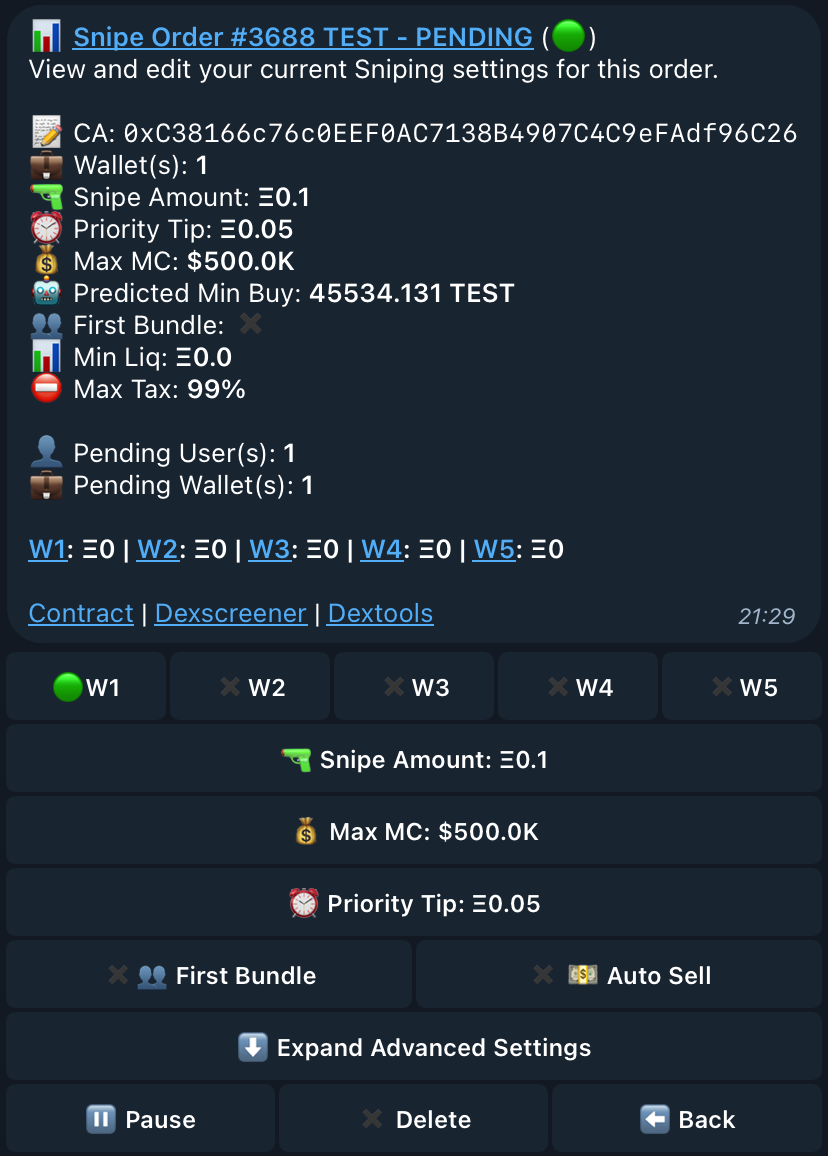
After providing the **contract address** of the token you wish to queue a snipe order for, you will be greeted with the message below. This message will indicate your **current settings** and **values** for this snipe order. You can view the **current status of the snipe order**, the **snipe order number**, **the contract address**, **the token name** and the **wallets you are using** for this snipe. Additionally, the total count of Looter wallets and users who are queued for the same snipe is also displayed.&#x20;

<figure><img src="https://i.gyazo.com/b049f345c92e75e33c9dff3ca05eb9f4.png" alt="" width="563"><figcaption><p>Provided are also quick access links to view this token's contract on Etherscan, Dexscreener and Dextools 👍 </p></figcaption></figure>
{% hint style="info" %}
The tokens shown in the images on this document were used strictly for testing, do not copy or use any of the tokens shown without doing your own prior research. &#x20;
{% endhint %}

***

## ⚙️ Viewing your Snipe Settings

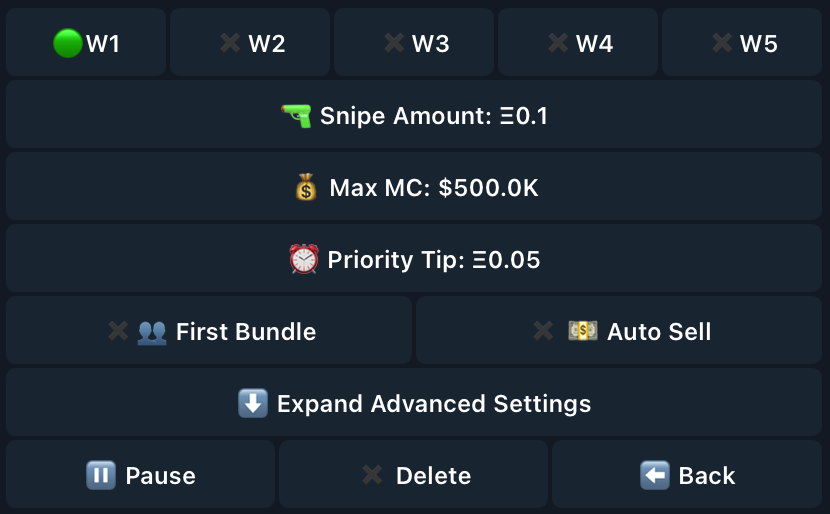
<figure><img src="https://i.gyazo.com/dd0364f7ff80b3f7b0b230a3de105ec3.png" alt="" width="563"><figcaption><p>Customisable values to change the settings for your Snipe Orders ⚙️ </p></figcaption></figure>

These buttons will assist you in **changing the wallet(s)** used for the snipe, the **snipe amount,** **max market-cap,** the **priority tip** you wish to use, **toggling First Bundle and Auto-Sell** as well as some **special advanced settings**. Looter will allow you to select **multiple wallets** to snipe from, which is a common tactic used in listing sniping.&#x20;

<figure><img src="https://i.gyazo.com/4dff93ae9328c243173fe4bc68c62018.png" alt="" width="563"><figcaption></figcaption></figure>

The **three buttons** shown above will act as your status controls for this Snipe Order:

**Pause** will pause and draft the Snipe Order, and the bot will stop scanning.  [⏸️](https://emojipedia.org/pause-button)\
**Delete** will remove and cancel the Snipe Order, removing it as a Draft Order. ✖️\
**Back** will send you to the Snipe Orders page where you can view the order as a draft. ⬅️&#x20;

***

## 💼  Wallet Selection

Multi-Wallet sniping is supported! Sniping from one or more wallets can be executed by selecting more than one wallet as shown below. Wallet balances are also viewable from this page!

<figure><img src="https://i.gyazo.com/a12e5e2f8d4050ed6caa233d2a0c9e27.png" alt="" width="563"><figcaption><p><br>The green icon is an indicator for that wallet being in use for this transaction, and the X is showing the wallet is not in use.</p></figcaption></figure>

***

## 🔫  Changing your Snipe Amount

<figure><img src="https://i.gyazo.com/166e11e691ab405ac25310f73d5aa185.png" alt="" width="563"><figcaption><p>Selecting this button will allow you to change the amount of Ethereum you snipe with. 🔫 </p></figcaption></figure>

<figure><img src="https://i.gyazo.com/ce90c4ea286ba15daee6fbcedfd328ad.png" alt="" width="563"><figcaption><p>Respond to this message with the Ethereum value that you wish to use to snipe. (Example: 0.5)  </p></figcaption></figure>

Selecting this button and responding to the bot will **change the amount of Ethereum** you are using to Snipe with. After **providing** your chosen amount, the settings page will **update and reflect your selection.**&#x20;

***

## 💰 Changing your Max Market-Cap

<figure><img src="https://i.gyazo.com/478d5854d433c6222825f1a479dda64f.png" alt="" width="563"><figcaption><p>Selecting this button will allow you to change your Max Market-Cap setting for this order. 💰 </p></figcaption></figure>
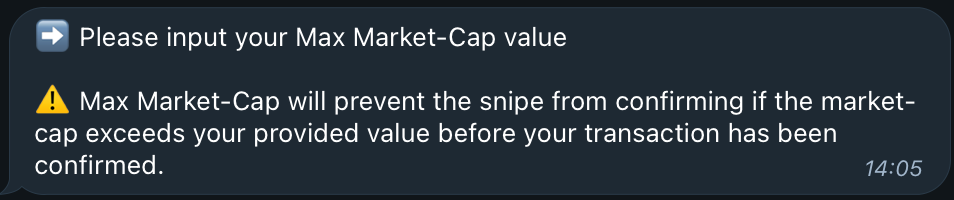
<figure><img src="https://i.gyazo.com/4c06a0f9dc4c04ca6c6f6b783d30001f.png" alt="" width="563"><figcaption><p>Respond to this message with the Market-Cap value you wish to use. (Example: 1000000)  </p></figcaption></figure>

Selecting this button and responding to the bot will **change the Max Market-Cap** amount you are using to Snipe with. After **providing** your chosen amount, the settings page will **update and reflect your new chosen Market-Cap value.**&#x20;

{% hint style="info" %}
The Max Market-Cap setting acts as a failsafe for the snipe transaction. If the market-cap of the token you are sniping exceeds your chosen amount before your snipe transaction has confirmed, it will revert and cancel - further preventing any possible losses.&#x20;
{% endhint %}

***

## ⏰  Changing your Priority Tip

<figure><img src="https://i.gyazo.com/a24847707cedb5f0385d5105de58518e.png" alt="" width="563"><figcaption><p>Selecting this button will allow you to change your Priority Tip setting for this order. ⏰ </p></figcaption></figure>

<figure><img src="https://i.gyazo.com/d3667898821ab08fc043f2a93135dbef.png" alt="" width="563"><figcaption><p>Respond to this message with the Ethereum amount you wish to use as your priority tip (Example: 0.1)  </p></figcaption></figure>

Selecting this button and responding to the bot will **change the Priority Tip** amount you are using to Snipe with. After **providing** your chosen amount, the settings page will **update and reflect your new chosen Priority Tip value.**&#x20;

{% hint style="info" %}
The Priority Tip is not mandatory and you may set your value to zero if you wish. However, adding a Priority Tip acts as a bribe to the miner of the block your transaction will be placed into. This Bribe/Tip will prioritise your transaction over others and help your transaction confirm quicker within the block, potentially increasing your sniping profit by being able to get in earlier than others. 😉&#x20;
{% endhint %}

***

## 🪙  Dynamic Tipping

Dynamic Tipping is a revolutionary feature to the market for sniping, only available exclusively with Looter, the bot with the best tech ;) ! Also known as Tip Saving, it works by calculating the  total block's tip before the block is even mined and dynamically adjusts the tip you configured to achieve the best possible transaction placement among other snipers and other bots.&#x20;

{% hint style="info" %}
This is all done automatically with no extra configuration passed down to the user and the final bribe amount will not exceed your original selection! Pretty neat right!
{% endhint %}

***

## [👥](https://emojipedia.org/busts-in-silhouette)  Toggling First Bundle

Want to guarantee your transaction being in that golden first bundle when sniping? Select the button on the left! Sniping with First Bundle toggled will only push your transaction to the chain if you will place within the first bundle of snipe transactions. Determining this is up to the user and can be affected by the number of wallets across the board sniping the launch as well as the amount of tip used for the snipe!&#x20;

<figure><img src="https://i.gyazo.com/5297e1775849b7626d868c7b1f31e333.png" alt="" width="563"><figcaption><p>Toggle First Bundle by selecting the button located on the left <a href="https://emojipedia.org/busts-in-silhouette">👥</a></p></figcaption></figure>

{% hint style="info" %}
If you have First Bundle toggled and your transaction isn't going to be included within the first bundle then your snipe will be reverted and cancelled before it even reaches the chain, therefore saving you any potential gas fee for a transaction failure! 😎&#x20;
{% endhint %}

***

## 💵  Toggling Auto-Sell

Auto-Sell does exactly what it says it does! Having this toggled will provide two new settings to be configured. No need to stare at the chart after sniping when you have Auto-Sell toggled as it will sell your desired token amount at your specified percent increase!&#x20;

<figure><img src="https://i.gyazo.com/abcbbeb1002326893f3f43f4d118f858.png" alt="" width="563"><figcaption></figcaption></figure>

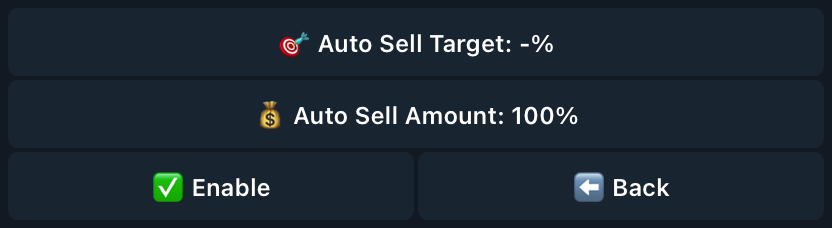
Configuring Auto-Sell sets up a Limit Sell order once the token you are trying to snipe has been launched with live liquidity. Configure to sell only a portion of your tokens (1%-100%) and choose the percent gain you are hoping to get for this launch (e.g. 200%, 400%). 💵&#x20;

***

## 😎  Advanced Snipe Settings&#x20;

Advanced Settings are additional safety precautions that will help keep you safe when sniping. These two settings are completely optional and act similarly to Max-MarketCap!&#x20;

<figure><img src="https://i.gyazo.com/7fd33118b826e96d63633384c2ccad09.png" alt="" width="563"><figcaption></figcaption></figure>

After expanding the Advanced Settings, you are greeted with two new configurations for your snipe orders! These two options are fail-safes, just like Max-MarketCap, and will revert the snipe if the launch goes against any of these parameters! <br>

📊 Minimum Liquidity (ETH):\
Reverts the snipe if it is launched with lower liquidity than the provided value. \
\
⛔️ Maximum Transaction Tax:\
Reverts the snipe if it is launched with a higher transaction tax than the provided value.&#x20;

***

## 👀  Viewing your Open Snipe Orders

<figure><img src="https://i.gyazo.com/dc9f57035c7edba5c621ee49b716658b.png" alt="" width="563"><figcaption><p>Selecting this button on the homepage will display a page showing your queued Snipe Orders. </p></figcaption></figure>
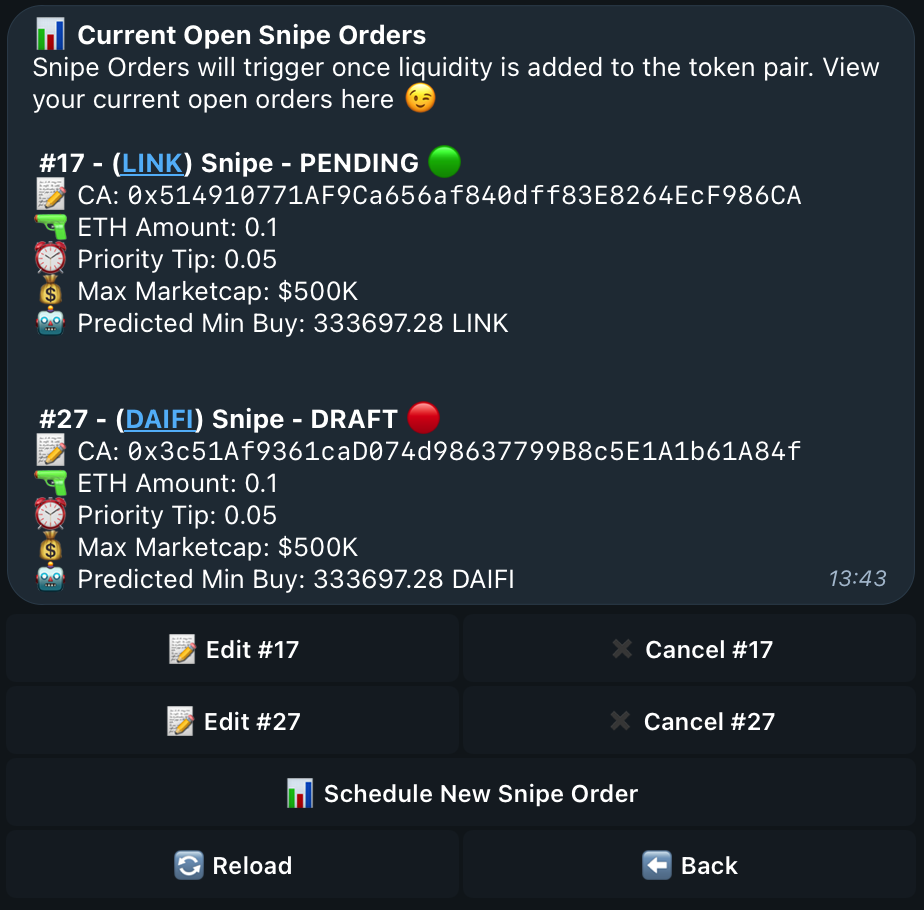
<figure><img src="https://i.gyazo.com/8dec968e76e6eb80e2256950866c8042.png" alt="" width="563"><figcaption><p>This is the queued snipes page, where you can view and edit any open snipes you currently have.  </p></figcaption></figure>

From here, you can view all your **current queued snipe orders**, as well as **edit them, cancel them** and **schedule new orders**. Each order will display its relevant information, such as the **status, token name, contract address, snipe amount, priority tip, max market-cap** and a **simulated minimum purchase amount**.

{% hint style="info" %}
Once again please note, the tokens shown in the images on this document were used strictly for testing, do not copy or use any of the tokens shown without doing your own prior research.&#x20;
{% endhint %}


# Limit Orders

No need to stare at charts any longer with Looter's inbuilt limit orders! We will handle the chart checking for you. If you're unsure what a Limit Order is head over to our Common Questions page 😉

***

Limit Orders are currently supported on:&#x20;

* Ethereum
* Solana
* Abstract

{% embed url="<https://www.youtube.com/watch?ab_channel=Looter_ai&index=4&list=PLH9BPUNGuM1z6rXp2OGTVvWe_7qw7Wxw-&v=lyEUbW0Ha0g>" %}

***

<mark style="color:orange;">`To begin executing and configuring a limit order, select this "📊 Limit Orders" button shown below on the main page.`</mark>

<figure><img src="https://i.gyazo.com/a17319b121e8aeb4232359ae4ae712ee.png" alt="" width="563"><figcaption><p>Select this button from the homepage to execute Limit Orders and view and edit your current orders. 👍 </p></figcaption></figure>

***

## 🟢  Selecting between Limit Buy or Limit Sell

<figure><img src="https://i.gyazo.com/c78c06bfebd44df24c8b718e6c128b29.png" alt="" width="563"><figcaption><p>Select the button of the type of order you wish to make, whether thats a Limit Buy or Sell. 💰 </p></figcaption></figure>
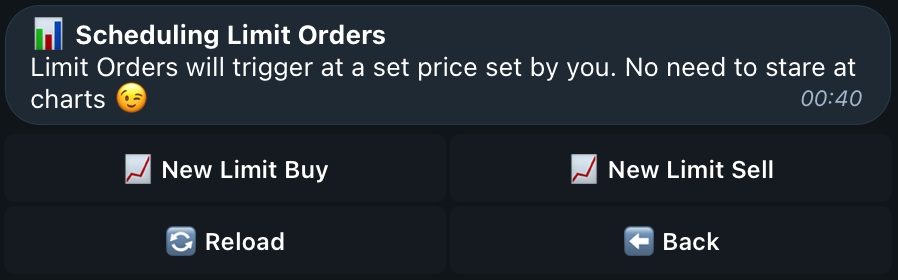
To make a selection between the type of order (Buy or Sell), use these two buttons to make that selection from the Limit Orders page. Limit Buy will purchase your tokens at your target value. Limit Sell will sell your tokens in selected wallets at your target value.&#x20;

***

## 📊  Placing a Limit Order

After navigating yourself to the **Limit Orders** page, select which order type (Limit Buy or Limit Sell) you would like to make with the **buttons shown below** and respond with the **contract address** of the token that you wish to start a Limit Order for.&#x20;

<figure><img src="https://i.gyazo.com/2214a0eab5848cc68dc1ce6485bb6c97.png" alt="" width="563"><figcaption><p>Select "📈 New Limit Buy" or "📈 New Limit Sell" to begin executing a Limit Buy/Sell Order 👍 </p></figcaption></figure>

<figure><img src="/files/P2SjcbAC5docJkgcrNHW" alt="" width="563"><figcaption><p>Respond with the contract address of the token you wish to start a Limit Order for. </p></figcaption></figure>
{% hint style="info" %}
The contract address supplied must be tradable on UniSwap to commence the Limit Order configuration process.&#x20;
{% endhint %}

***

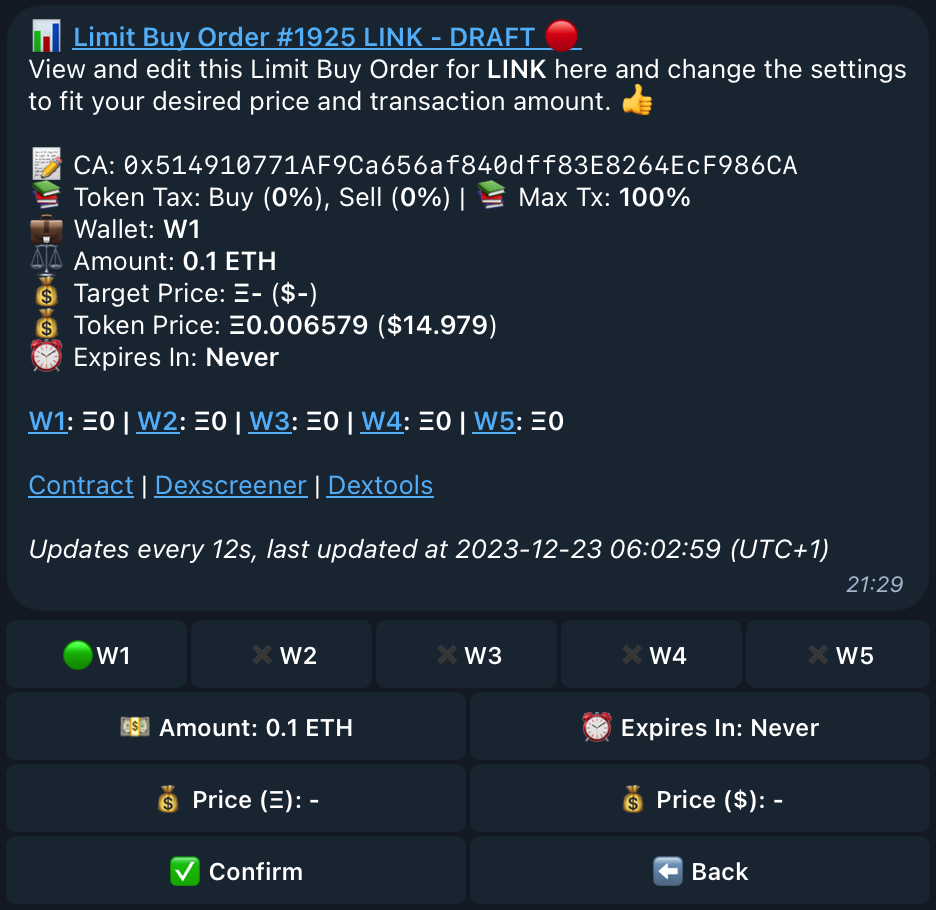
## ⚙️  Configuring the Limit Order&#x20;

After providing the **contract address** of the token you wish to configure a Limit Order for, you will be greeted with this message below. This message will indicate to your **current settings** and **values** for this Limit Order. You can view the **current status of the Limit Order**, the **limit order number**, **the contract address**, **the buying and selling transaction tax, the token name,** the **wallets you are using** for this Limit Order, your **Selling/Buying amount**, **target price** in ETH/Dollar value, **current price** of this token and **when you have set for this order to expire**. All this information is updated and refreshed automatically every 12 seconds, the last refresh is viewable at the bottom of the message.

<figure><img src="https://i.gyazo.com/829c9d2fa10b20d89151c4ed393748e5.png" alt="" width="563"><figcaption><p>Provided are also quick access links to view this token's contract on Etherscan, Dexscreener and Dextools 👍 </p></figcaption></figure>

These buttons will assist you in **changing the wallet(s)** used for the order, the **target amount** in Ethereum or Dollar valu&#x65;**,** the **amount you are selling or buying** and **changing the expiry date** of the order. Looter will allow you to select **multiple wallets** to make this order from. Additionally shown is the current token price in Ethereum value and dollar value.&#x20;

<figure><img src="https://i.gyazo.com/41fc6685e6f13d648692259adb13fc9b.png" alt=""><figcaption></figcaption></figure>

These **three buttons** will act as your controls for this Limit Order:

**Confirm** will confirm the Limit Order, and the bot will begin scanning for your target price. ✅ \
**Delete** will remove and cancel the Limit Order, removing it as a Draft Order. ✖️\
**Back** will send you to the Limit Orders page where you can view the order as a draft. ⬅️&#x20;

{% hint style="info" %}
The tokens shown in the images on this document were used strictly for testing, do not copy or use any of the tokens shown without doing your own prior research. &#x20;
{% endhint %}

***

## 💼  Wallet Selection

Multi-Wallet trading is supported! Setting up a Limit Order from one or more wallets can be executed by selecting more than one wallet as shown below. Wallet balances are also viewable from this page!

<figure><img src="https://i.gyazo.com/a12e5e2f8d4050ed6caa233d2a0c9e27.png" alt="" width="563"><figcaption><p><br>The green icon is an indicator for that wallet being in use for this transaction, and the X is showing the wallet is not in use.</p></figcaption></figure>

***

## 💰 Choosing your Target Price

<figure><img src="https://i.gyazo.com/14d58a4798cf728ed7dbd419ef9bf19e.png" alt="" width="563"><figcaption><p>You are able to choose your Target Price in either an Ethereum value or Dollar value. 💰 </p></figcaption></figure>

To make a selection for your target price, select which value you wish to use (Ethereum or Dollar) and you will be greeted with a message asking you to input your desired amount. ⬇️&#x20;

<figure><img src="https://i.gyazo.com/0856b2452b0c0d4d6b72c13427208ca5.png" alt="" width="563"><figcaption><p>The USD selection has been made, therefore the target price will be entered in USD. 👍 </p></figcaption></figure>

Selecting this button and responding to the bot will **change the target price** in USD or ETH. After **providing** your chosen amount, the settings page will **update and reflect your new target price in both values.**

***

## 💴  Choosing Buy/Sell Amount

<figure><img src="https://i.gyazo.com/f438885c87c44a3de36af5796cb467a1.png" alt="" width="563"><figcaption><p>Selecting this button will allow you to change the amount of Ethereum to buy with, <br>or change the token amount you are selling 💰 </p></figcaption></figure>

<figure><img src="https://i.gyazo.com/59d39a2698073914870eef193f1a26b5.png" alt="" width="563"><figcaption><p>As this example is for a Limit Buy Order, you will supply the amount of Ethereum to buy with from this message. 👍 </p></figcaption></figure>

Selecting this button and responding to the bot will **change the purchase amount or selling amount** depending on which order type you have chosen. After **providing** your amount, the settings page will **update and reflect your new buying/selling amount** in token or ETH value.

***

## ⏰  Choosing Expiry Time

<figure><img src="https://i.gyazo.com/de44ab366de86979cab4db29cf46bfa9.png" alt="" width="563"><figcaption><p>Selecting this button will allow you to change the expiry time of this order (in minutes) ⏰ </p></figcaption></figure>

<figure><img src="https://i.gyazo.com/d9ca8760d7d256dd794337dfb6a0cb78.png" alt="" width="563"><figcaption><p>Returned message after selecting to change your expiry time for this order. </p></figcaption></figure>
Selecting this button and responding to the bot will **change the purchase amount or selling amount** depending on which order type you have chosen. After **providing** your amount, the settings page will **update and reflect your new buying/selling amount** in token or ETH value. Leave this button as it is if you wish to have your Limit Order never expire!&#x20;

***

## 👀  Viewing your Open Limit Orders

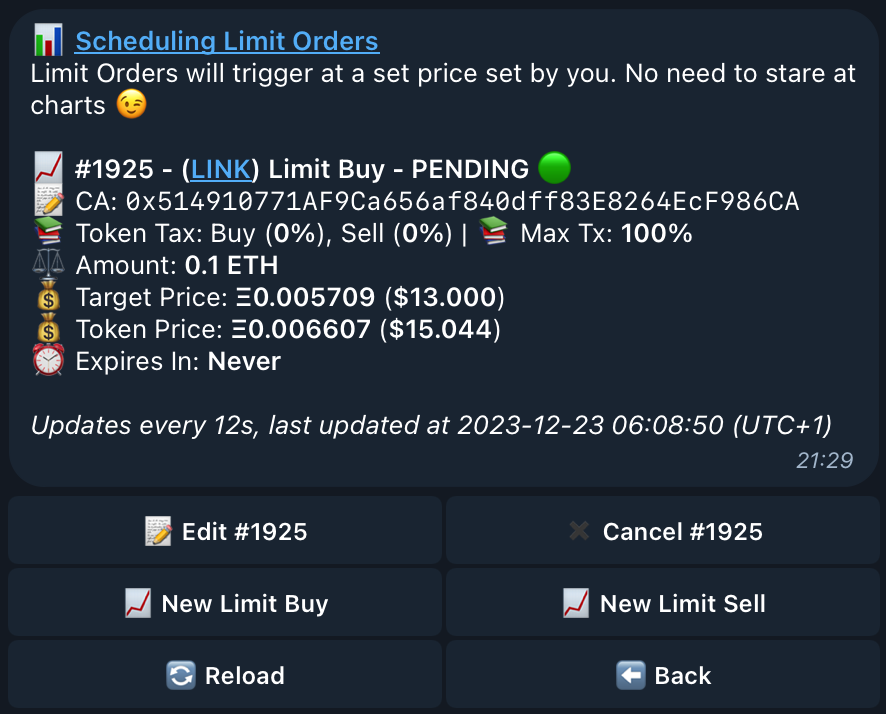
<figure><img src="https://i.gyazo.com/5ab14efd8db086b21342505e61b0859f.png" alt="" width="563"><figcaption><p>Once limit orders have been made, they will display on the Limit Orders page. 📊  </p></figcaption></figure>

From here, you can view all your **current open limit orders**, as well as **edit them, cancel them** and **schedule new orders**. Each order will display its relevant information, such as the **status, order type, token name, contract address, transaction tax, buy/sell amount, target price, current token price** and the **expiry time for this order**. All this information is updated and refreshed automatically every 12 seconds, the last refresh is viewable at the bottom of the message.

{% hint style="info" %}
Once again please note, the tokens shown in the images on this document were used strictly for testing, do not copy or use any of the tokens shown without doing your own prior research.&#x20;
{% endhint %}


# Selling Tokens

Lets give you the rundown on how to sell your tokens with Looter 💸

***

{% embed url="<https://www.youtube.com/watch?ab_channel=Looter_ai&index=3&list=PLH9BPUNGuM1z6rXp2OGTVvWe_7qw7Wxw-&v=UWZTqgLfpHQ>" %}

***

<mark style="color:orange;">`To begin, select the "💰 Sell Tokens " button on the main page.`</mark>

<figure><img src="/files/CWiHEXueLpgIwskQVtQl" alt="" width="563"><figcaption><p>Select this button from Looter's main page, as shown above ⬆️ </p></figcaption></figure>
***

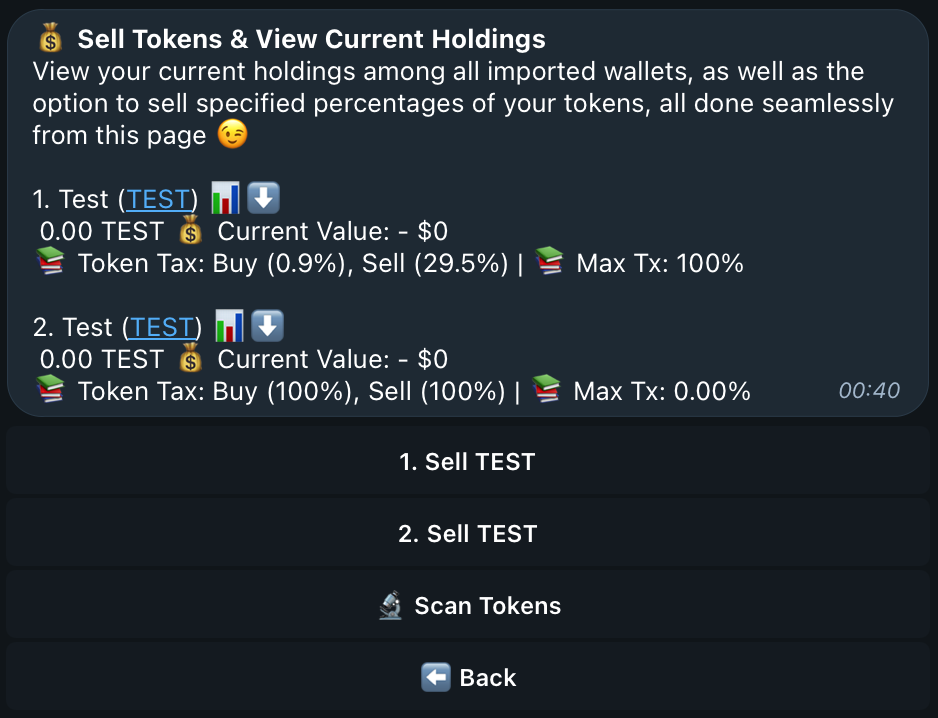
## 👀 Viewing Token Holdings&#x20;

<figure><img src="https://i.gyazo.com/696e2ac7af5b71d6e0a39280fdf1315e.png" alt="" width="563"><figcaption></figcaption></figure>

{% hint style="info" %}
The tokens shown in the images on this document were used strictly for testing, do not copy or use any of the tokens shown without doing your own prior research. &#x20;
{% endhint %}

After making the selection on the home page, you will be greeted with a **list of your current holdings** among all wallets imported within the bot. From here, we can see the **token's ticker**, a quick link to the **tokens contract address**, your **current holdings,** the **current value** of the token and **the transaction taxes** this token may have. 💰&#x20;

Now, let's get educated on the **selling process.** Don't worry, its as **easy** as everything else!

***

## 💰 Making your Token Selection &#x20;

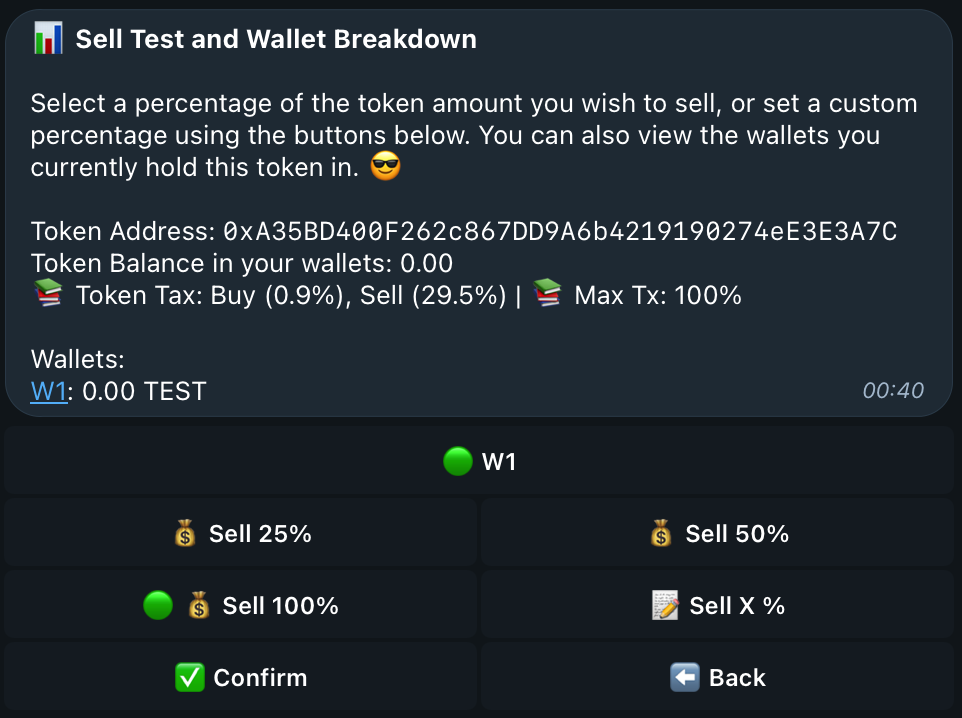
<mark style="color:orange;">`To begin, select the button for which token you wish to sell. In this case, we will use our test token "1. Sell TEST"`</mark>

<figure><img src="https://i.gyazo.com/ea1b1b3ab665bcc647e2c3c73534761a.png" alt="" width="563"><figcaption><p>Selecting the button of the token you wish to sell will return the token sell page. ⬇️ </p></figcaption></figure>
<figure><img src="https://i.gyazo.com/a8cbb6440774b0e9d4a80a0033b48faf.png" alt="" width="563"><figcaption></figcaption></figure>

This page will display a **breakdown of the wallets** with this token **and the amount they hold.** If you have this token in **multiple wallets**, you are able to **select and deselect** the wallets you wish to sell this token from - you can sell from **1 wallet** or **all 5 wallets!** 😮&#x20;

***

## 📝 Selecting your Sell Amount

<figure><img src="https://i.gyazo.com/eedf7e4e76c45eac7fba752dabc12a9d.png" alt="" width="563"><figcaption><p>The 🟢 indicates your current chosen value, in this case, to sell 100% of the token as shown above ⬆️ </p></figcaption></figure>

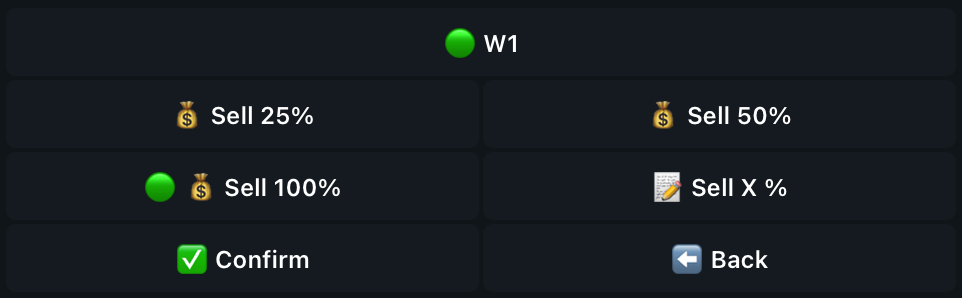
Now, let's explain the different buttons on the selling page! Preset for you, the option to sell **25**%, **50**% or **100**% of the token you have selected! If these options aren't **suited for you**, the button "📝 **Sell X %**" allows you to **specify a percentage** of your choice that you wish to sell of the token.

<figure><img src="/files/NV12e5bwKzdxrRxIhwvZ" alt="" width="563"><figcaption><p>Returned message of custom selling percentage 😎 </p></figcaption></figure>

Selecting this button, will return a **reply-able message** for you to choose your **specified percentage**!&#x20;

***

## 💸 Confirming the Sell Order

<figure><img src="https://i.gyazo.com/57826aeb83adaff339491d7552b6d344.png" alt="" width="563"><figcaption></figcaption></figure>

After **choosing your token** to sell and the **amount** you wish to sell you are ready to confirm the order! Selecting the **"✅ Confirm"** button as shown above will place this sell order and submit the transaction to the chain! You are now ready to start selling with Looter! 😎&#x20;

{% hint style="info" %}
Make sure to be aware of any transaction taxes there may be in the token's contract before selling! We have made this viewable in the tokens information shown to you before confirming. High selling taxes could potentially disrupt any possible profits you thought you had made!&#x20;
{% endhint %}


# Trading on Solana

Trading on Solana with Looter is quick and easy, check out the next pages to learn how!


# Buying Tokens

Lets show you how to easily begin buying Solana tokens with Looter 💰

***

<mark style="color:orange;">`To start your token purchase, click the "🎯 Buy / Snipe" button on the main page or paste a token contract into the message box on any page.`</mark>

<figure><img src="https://i.gyazo.com/6ad110a92fe3898f5134879e45041cb0.png" alt="" width="563"><figcaption><p>Click this button from the homepage to begin a token purchase 👍 </p></figcaption></figure>

<figure><img src="https://i.gyazo.com/cb221865f6fb00d63b51e094fc442227.png" alt="" width="563"><figcaption><p>Provide the contract address of the token you wish to buy with this message shown above. 💰 </p></figcaption></figure>

***

## 📕 Placing a Buy Order

After providing the **contract address** of the token you wish to purchase, you will be greeted with this message below. This message will indicate to you all **relevant information** about the token you have provided, including: **Contract Address, Liquidity Pool Version, Buying and Selling transaction taxes, market cap and the current price.** All this information is updated and refreshed automatically every 12 seconds, the last refresh is viewable at the bottom of the message.

<figure><img src="/files/b4yLs5KsWi7DTWCpXwhh" alt=""><figcaption><p>Provided are also quick access links to view this token's contract on Solscan, Dexscreener and Dextools 👍 </p></figcaption></figure>

{% hint style="info" %}
The tokens shown in the images on this document were used strictly for testing, do not copy or use any of the tokens shown without doing your own prior research. &#x20;
{% endhint %}

***

## 💼  Wallet Selection

Multi-Wallet trading is supported! Purchasing from one or more wallets can be executed by selecting more than one wallet as shown below. Wallet balances are also viewable from this page!

<figure><img src="/files/4JdWpYZVeMKht4D92auh" alt=""><figcaption></figcaption></figure>

***

## ⚡️ Tx  Mode

Select between Public or Private transactions by tapping the button shown below.&#x20;

![](/files/u7oJ21MeGepJrTeI6QR7)

Public transactions are generally used for the fastest transactions.

![](/files/vcEIbmywFrLiQPvQ255o)

Private transactions are generally used for their "Anti-Mev" capabilities, to avoid sandwiching but can be slower as they only cover 50% of all blocks on Solana.

***

## ⏰ Tx Expiry

As private transactions can occasionally take longer than expected, Looter has the option to automatically expire/timeout pending transactions.

<figure><img src="/files/7LqfPpvUpqerCEdmv1J4" alt=""><figcaption></figcaption></figure>

To change this expiry, tap the button shown above and input your desired expiry time.

<figure><img src="/files/0I1ATtqyWkJsUcvlqffl" alt=""><figcaption></figcaption></figure>

***

## 🚀 Adjusting Slippage Setting

Slippage is set to 20% by default for Solana trading, however if you wish to set your own slippage percentage - this can be done! Simply make the button selection and respond to the quoted message with your desired slippage percentage!&#x20;

<figure><img src="/files/8lS9HHJ7BHq1SJkmbOH1" alt=""><figcaption></figcaption></figure>

{% hint style="info" %}
Token transaction taxes must be accounted for when supplying your slippage amount, you can view the buy and sell taxes for this token on the page.
{% endhint %}

***

## ⛽️ Adjusting Priority Gas

Want your transaction to be picked up by miners quicker? Easy with Looter! The option is there to supply additional gas to your transaction, speeding up the time it will take for your trade to be mined and confirmed on-chain!&#x20;

<figure><img src="/files/8lS9HHJ7BHq1SJkmbOH1" alt=""><figcaption></figcaption></figure>

Looter allows the use of any 3 automated settings or a custom amount for gas.

The bot will automatically estimate gas/tip required to set you in the top priority of all pending transactions! You may select a specific amount of SOL for even higher priority, or choose between Low/Auto/High for consistently high bands. &#x20;

Selecting Auto will set you in the 75th percentile and High for the 95th of transactions at all times!

<figure><img src="/files/qDtzkO07YhuQI8LAZo3F" alt="" width="563"><figcaption></figcaption></figure>

***

## 💰 Customising Purchase Amount

Preset buttons are available for commonly used Solana purchase amounts, however you also have the option to customise your purchase amount in Solana value! Simply either select one of the preset buttons (1, 2, 5, 10) or select "Buy X SOL" to customise your purchase amount!&#x20;

<figure><img src="https://i.gyazo.com/628ce84ee7f90d266d961c73a2755b5e.png" alt="" width="563"><figcaption><p>Returned message when selecting "Buy X SOL" - reply with the amount of Solana you wish to use to buy 👍 </p></figcaption></figure>

***

## ✅  Executing the Buy Order

The final step is confirming! Executing the order is as simple as selecting on one of the provided value buttons or customising your desired amount in Solana value and then confirming the order with the button shown below!

<figure><img src="https://i.gyazo.com/c03faa8f5cba137846bccad5bfa5beab.png" alt="" width="563"><figcaption></figcaption></figure>

Here are also two additional options; Once you make a purchase, "Go to Sell" will appear and will take you directly to the sell page and the "Back" button will return you to the homepage!


# Snipe Orders

Sniping works very similarly to buying, let's show you how! Unsure what sniping is? Head over to our Common Questions page for an in-depth description 👍

***

<mark style="color:orange;">`To begin executing and configuring a snipe order, select the "🎯 Buy / Snipe" button shown below on the main page.`</mark>

<figure><img src="https://i.gyazo.com/7f1135e24ec3e4df05db85994b90ea95.png" alt="" width="563"><figcaption><p>Select this button from the homepage to begin executing a snipe order 👍 </p></figcaption></figure>

<figure><img src="https://i.gyazo.com/83e1714ac2b94cd22d9dfcf215b45ae4.png" alt="" width="563"><figcaption><p>Provide the contract address of the token you wish to snipe with this message shown above. 💰 </p></figcaption></figure>

***

## 🎯 Placing a Snipe Order

After providing the **contract address** of the token you wish to queue a snipe order for, you will be greeted with the message below. This message will indicate your **current settings** and **values** for this snipe order. You can view the **current status of the snipe order**, the **snipe order number**, **the contract address**, **the token name** and the **wallets you are using** for this snipe. Additionally, the total count of Looter wallets and users who are queued for the same snipe is also displayed.&#x20;

<figure><img src="/files/xqmfBsEIQKYRkC4CqJxE" alt=""><figcaption></figcaption></figure>

{% hint style="info" %}
The tokens shown in the images on this document were used strictly for testing, do not copy or use any of the tokens shown without doing your own prior research. &#x20;
{% endhint %}

***

## ⚙️ Viewing your Snipe Settings

<figure><img src="/files/9kwysgEfdL4aPxnwzRAk" alt=""><figcaption></figcaption></figure>

These buttons will assist you in **changing the wallet(s)** used for the snipe, the **snipe amount,** **max market-cap,** the **priority tip** you wish to use, **toggling First Bundle and Auto-Sell** as well as some **special advanced settings**. Looter allows you to select **multiple wallets** to snipe from, which is a common tactic used in listing sniping.&#x20;

<figure><img src="https://i.gyazo.com/4dff93ae9328c243173fe4bc68c62018.png" alt="" width="563"><figcaption></figcaption></figure>

The **three buttons** shown above will act as your status controls for this Snipe Order:

**Pause** will pause and draft the Snipe Order, and the bot will stop scanning.  [⏸️](https://emojipedia.org/pause-button)\
**Delete** will remove and cancel the Snipe Order, removing it as a Draft Order. ✖️\
**Back** will send you to the Snipe Orders page where you can view the order as a draft. ⬅️&#x20;

***

## 💼  Wallet Selection

Multi-Wallet sniping is supported! Sniping from one or more wallets can be executed by selecting more than one wallet as shown below. Wallet balances are also viewable from this page!

<figure><img src="/files/9geFAXtN5hC5NkdPHSOB" alt=""><figcaption><p>The green icon is an indicator for that wallet being in use for this transaction, and the X is showing the wallet is not in use.</p></figcaption></figure>

***

## 🔫  Changing your Snipe Amount

<figure><img src="/files/5OO42AHWzVStge0snPDZ" alt=""><figcaption><p>Selecting this button will allow you to change the amount of Solana you snipe with. 🔫 </p></figcaption></figure>

<figure><img src="/files/qc03H92bu31DQfP4Uivl" alt=""><figcaption><p>Respond to this message with the Solana value that you wish to use to snipe. (Example: 0.5)  </p></figcaption></figure>

Selecting this button and responding to the bot will **change the amount of Solana** you are using to Snipe with. After **providing** your chosen amount, the settings page will **update and reflect your new selection.**&#x20;

***

## 💰 Changing your Max Market-Cap

<figure><img src="/files/0UDcN7xGrBOfpTeQ4h8P" alt=""><figcaption><p>Selecting this button will allow you to change your Max Market-Cap setting for this order. 💰 </p></figcaption></figure>

<figure><img src="https://i.gyazo.com/4c06a0f9dc4c04ca6c6f6b783d30001f.png" alt="" width="563"><figcaption><p>Respond to this message with the Market-Cap value you wish to use. (Example: 1000000)  </p></figcaption></figure>

Selecting this button and responding to the bot will **change the Max Market-Cap** amount you are using to Snipe with. After **providing** your chosen amount, the settings page will **update and reflect your new chosen Market-Cap value.**&#x20;

{% hint style="info" %}
The Max Market-Cap setting acts as a failsafe for the snipe transaction. If the market-cap of the token you are sniping exceeds your chosen amount before your snipe transaction has confirmed, it will revert and cancel - further preventing any possible losses.&#x20;
{% endhint %}

***

## ⏰  Changing your Priority Tip

<figure><img src="/files/d3osdXbhqxRybGuSFuJx" alt=""><figcaption><p>Selecting this button will allow you to change your Priority Tip setting for this order. ⏰ </p></figcaption></figure>

<figure><img src="/files/VkyqloJB9cUpT9C9OtqX" alt=""><figcaption><p>Respond to this message with the Solana amount you wish to use as your priority tip (Example: 0.1)  </p></figcaption></figure>

Selecting this button and responding to the bot will **change the Priority Tip** amount you are using to Snipe with. After **providing** your chosen amount, the settings page will **update and reflect your new chosen Priority Tip value.**&#x20;

{% hint style="info" %}
The Priority Tip is not mandatory and you may set your value to zero if you wish. However, adding a Priority Tip acts as a bribe to the validators of the block your transaction will be placed into. This Bribe/Tip will prioritise your transaction over others and help your transaction confirm quicker within the block, potentially increasing your sniping profit by being able to get in earlier than others. 😉&#x20;
{% endhint %}

***

## 😎  Minimum Liquidity&#x20;

The minimum liquidity setting is an  additional safety precaution that will help keep you safe when sniping. This setting is completely optional!&#x20;

<figure><img src="/files/gOoIGIdwdyKHJICDycEU" alt=""><figcaption></figcaption></figure>

By selecting the the minimum amount of liquidity (SOL), the snipe will check the liquidity pool and revert if it is launched with lower liquidity than your  provided value. <br>

***

## 👀  Viewing your Open Snipe Orders

<figure><img src="https://i.gyazo.com/dc9f57035c7edba5c621ee49b716658b.png" alt="" width="563"><figcaption><p>Selecting this button on the homepage will display a page showing your queued Snipe Orders. </p></figcaption></figure>

<figure><img src="/files/QwZGQrIWEw5TEYbSeRNv" alt=""><figcaption><p>This is the queued snipes page, where you can view and edit any open snipes you currently have.  </p></figcaption></figure>

From here, you can view all your **current queued snipe orders**, as well as **edit them, cancel them** and **schedule new orders**. Each order will display its relevant information, such as the **status, token name, contract address, snipe amount, priority tip, max market-cap** and a **simulated minimum purchase amount** (which based on your max market cap setting).

{% hint style="info" %}
Once again please note, the tokens shown in the images on this document were used strictly for testing, do not copy or use any of the tokens shown without doing your own prior research.&#x20;
{% endhint %}


# Wasabi Trading

Trading on the Wasabi Protocol can be done entirely from within the bot. Want to learn how to trade your favorite NFT's with Looter? Let's begin!

***

<figure><img src="/files/UW1PAZIrcgtYHDbEaKxu" alt="" width="563"><figcaption></figcaption></figure>

***

## 🌱 What is the Wasabi Protocol?&#x20;

**Wasabi** is a fascinating protocol that combines NFTs (non-fungible tokens) with derivatives. Let’s dive into the details:

#### 1. NFTs (Non-Fungible Tokens)

* **NFTs** are unique digital assets. Unlike cryptocurrencies (like Bitcoin or Ethereum), where each coin is interchangeable, NFTs represent something specific and cannot be swapped for another.
* Think of NFTs as digital collectibles, art pieces, or even virtual real estate. Each NFT has its own distinct value and identity.

#### 2. Derivatives

* **Derivatives** are financial contracts based on an underlying asset (in this case, NFTs). They allow users to trade on price movements without directly owning the asset.

{% hint style="info" %}
Imagine you want to bet on whether the value of a rare Pokémon card will go up or down - you could use a derivative contract to do that!
{% endhint %}

#### What does the Wasabi Protocol do?&#x20;

* **The Wasabi Protocol** brings NFTs and derivatives together. Here’s how it works:
  * **Wasabi Perps (Perpetual Contracts):**&#x54;hese are perpetual bets on NFT prices. You don’t need to own the NFT itself; you can just bet on its value.
  * **Wasabi Options:** These are like NFT insurance. You can buy an option that lets you protect your NFT investment or even make leveraged bets.
  * **Liquidity Aggregation:** Wasabi combines liquidity from different sources, making it easier to buy or sell NFTs.

Wasabi is like a  bridge between NFTs and financial tools. It makes NFT trading more accessible and safer for the wider crypto community. So whether you’re an art lover or just curious about NFTs, keep an eye on Wasabi! 🚀 Now lets explore how to use Wasabi with Looter! 🕹&#x20;

***

## 🕹 Using Wasabi on Looter

<mark style="color:orange;">`To begin, select the "🟢 Wasabi Trading " button from the main page.`</mark>

***

<figure><img src="https://i.gyazo.com/ad2c822bc4e010b520900033fb9c3499.png" alt=""><figcaption><p>Select the button shown above to begin trading on the Wasabi Protocol inside Looter! 🌱 </p></figcaption></figure>
***

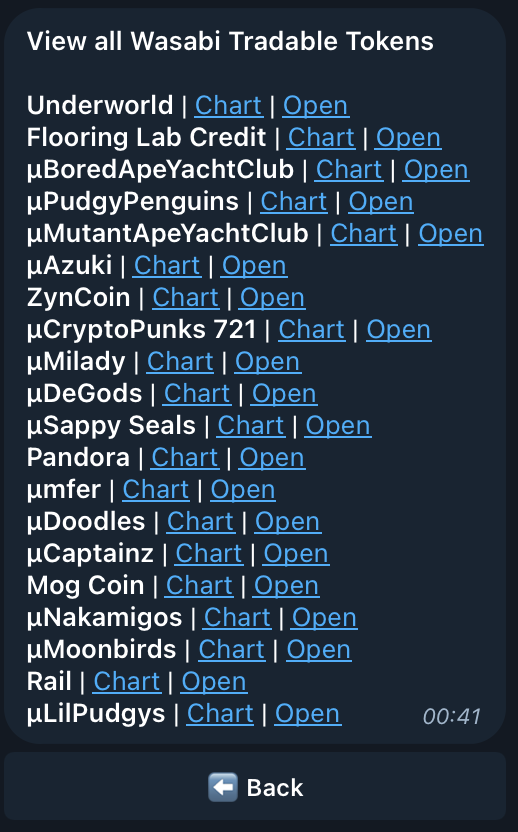
<div><figure><img src="https://i.gyazo.com/273b06b4ca1fdaba1cb224047c859bdc.png" alt="" width="188"><figcaption></figcaption></figure> <figure><img src="https://i.gyazo.com/124021faed3c087d75713cdbb580e60f.png" alt="" width="563"><figcaption><p>Wasabi Protocol homepage within Looter 🕹 </p></figcaption></figure></div>
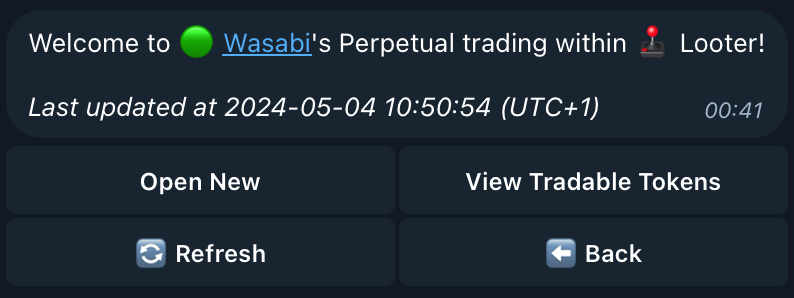
**Trading with Wasabi on Looter is easy**! Provided is a list of all **currently tradable tokens, their chart links** and a **quick-access** button to begin an order from within Looter.&#x20;

***

## 📚 Opening a Position

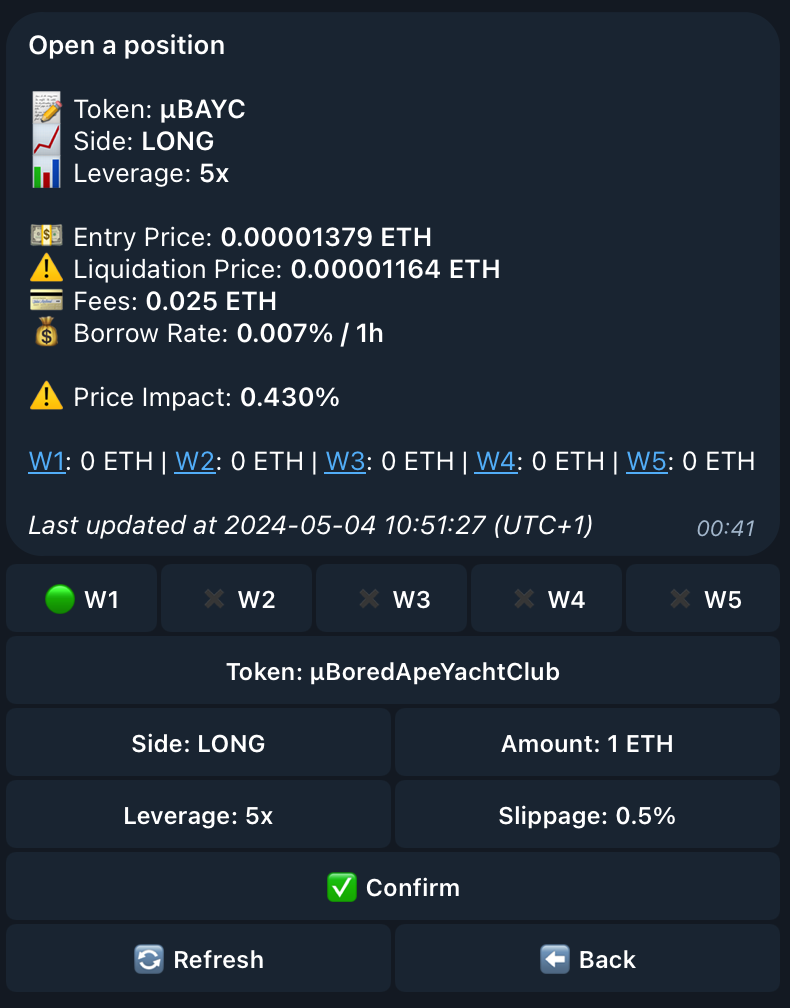
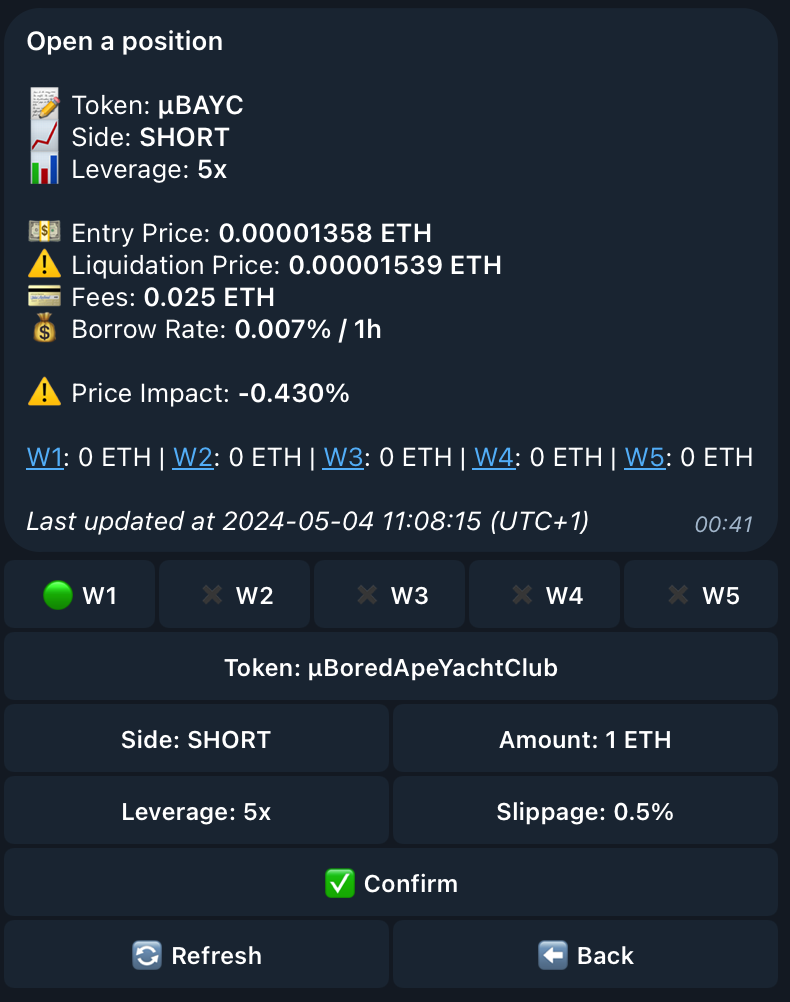
Let's dive into it! Select "Open" on the supported tradable NFT of your choice and displayed will be all the relevant information to your order, such as; **the name** of the tradable NFT toke&#x6E;**, order type** (SHORT/LONG), **leverage multiple, entry price, liquidation price, order fees, borrow rate** and the **price impact on the order.**&#x20;

<div><figure><img src="https://i.gyazo.com/489a799572f7d139542662ecf0cbb383.png" alt="" width="375"><figcaption><p>Shown above is a LONG position order for the NFT BAYC. 🌱 </p></figcaption></figure> <figure><img src="https://i.gyazo.com/58178a576ad2ea7a675501bf0c94327c.png" alt="" width="375"><figcaption><p>Shown above is a SHORT position order for the NFT BAYC. 🌱 </p></figcaption></figure></div>

{% hint style="info" %}
The tokens shown in the images on this document were used strictly for testing, do not copy or use any of the tokens shown without doing your own prior research. &#x20;
{% endhint %}

***

## 💼 Choosing your Order Type&#x20;

***

<figure><img src="https://i.gyazo.com/aaa1f75edc52bbf6cca1326f93b6f525.png" alt="" width="563"><figcaption><p>Selecting the "Side: SHORT" button will allow you to change your order type between LONG and SHORT.  💼 </p></figcaption></figure>

<figure><img src="https://i.gyazo.com/fc596c10d5fb258083c41b752bf79651.png" alt="" width="563"><figcaption><p>Respond to this message with the order type that you wish to use for this position! 💼 </p></figcaption></figure>

A **long position** refers to a scenario where a trader **buys an asset** (such as stocks or cryptocurrencies) with the expectation that its value will **increase over time**.

* **Buy and Hold**: In a long position, you purchase the NFT and hold it in your portfolio.
* **Profit from Price Appreciation**: You make a profit if the asset’s price rises. The goal is to sell the asset at a higher price than the purchase price.

A **short position** occurs when a trader **sells an asset they don’t own** (borrowing from Wasabi) with the expectation that its value will **decrease**.

* **Borrow and Sell**: In a short position, you borrow the NFT (in this case, the NFT from Wasabi) and immediately sell it in the market.
* **Profit from Price Decline**: You make a profit if the asset’s price falls. The goal is to buy back the asset at a lower price than the initial sale price.

***

## 📊 Choosing your Amount

<figure><img src="https://i.gyazo.com/aaa1f75edc52bbf6cca1326f93b6f525.png" alt="" width="563"><figcaption><p>Selecting the "Amount: 1 ETH" button will allow you to change the amount of Ethereum to trade with. 📊 </p></figcaption></figure>

<figure><img src="https://i.gyazo.com/7e8728f55d88d7315708f0f1ef8b257d.png" alt="" width="563"><figcaption><p>Respond to this message with the Ethereum value that you wish to use for this order. (Example: 0.5) 📊  </p></figcaption></figure>

***

## 📈 Choosing your Leverage

<figure><img src="https://i.gyazo.com/67ae49b9fdf5e87fbbda38e65c250330.png" alt="" width="563"><figcaption><p>Selecting the "Leverage: 5x" button will allow you to change the leverage amount for this order. 📈 </p></figcaption></figure>

<figure><img src="https://i.gyazo.com/80405c4a27ad14f56e940deaa2354fa6.png" alt="" width="563"><figcaption><p>Respond to this message with the leverage multiple that you wish to use for this order. (Example: 3x) 📈   </p></figcaption></figure>

***

## ✅ Confirming the Order

<figure><img src="https://i.gyazo.com/6ab4834ab560bcafb61e571fb95b48d1.png" alt="" width="563"><figcaption><p>Confirm your NFT Perpetual trade by pressing the "✅ Confirm" button shown above! </p></figcaption></figure>

Just like that you're ready to **confirm your order and trade NFT's** on Looter with the Wasabi Protocol! If you would like to read more on the protocol and its innovative features, you can do so using their official documentation website with [this link](https://docs.wasabi.xyz/_).

{% hint style="info" %}
Like any trading platform or crypto-currency token, Wasabi operates in a volatile market meaning prices of NFTs can **fluctuate rapidly, also affecting your positions rapidly!** Using Leverage amplifies gains but also magnifies losses. Be cautious when using leverage, especially in a volatile NFT market! Safe trading!🫡
{% endhint %}

***


# Trade History

You can view the history and important details of every trade made with Looter from within the bot! Lets show you how 📚

<mark style="color:orange;">`To begin, select the "📖 Trade History " button from the main page.`</mark>

***

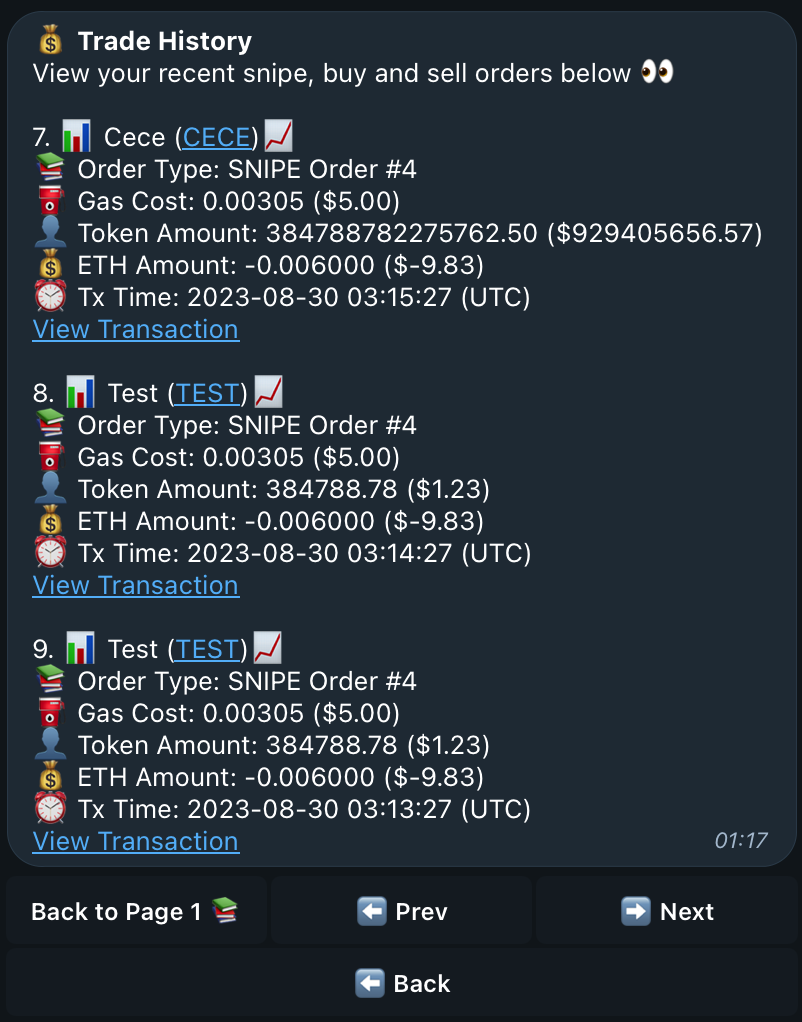
<figure><img src="https://i.gyazo.com/60b34c565e3a96d2c5b7f3b61c75b1bd.png" alt="" width="563"><figcaption><p>Select this button from the homepage to head over to view Trade History 📖 </p></figcaption></figure>
***

## 👀 Viewing your Trade History

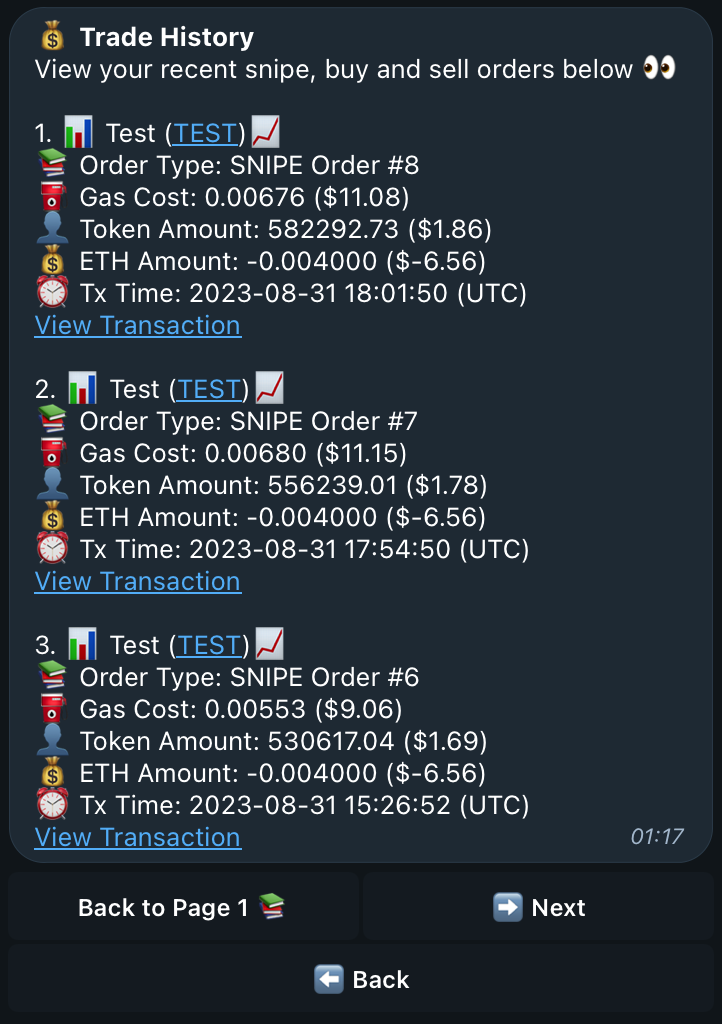
<div><figure><img src="https://i.gyazo.com/d271925e6d6f0292cdecf92cf30f6e10.png" alt=""><figcaption><p>Displaying Page 1 📚 </p></figcaption></figure> <figure><img src="https://i.gyazo.com/49a395c6ff3f63ab0d2c8b8be9b25c2c.png" alt=""><figcaption><p>Displaying Page 2 📚 </p></figcaption></figure> <figure><img src="https://i.gyazo.com/fcaa8a81f8664987e1635ff7f4c426c9.png" alt=""><figcaption><p>Displaying Page 3 📚 </p></figcaption></figure></div>

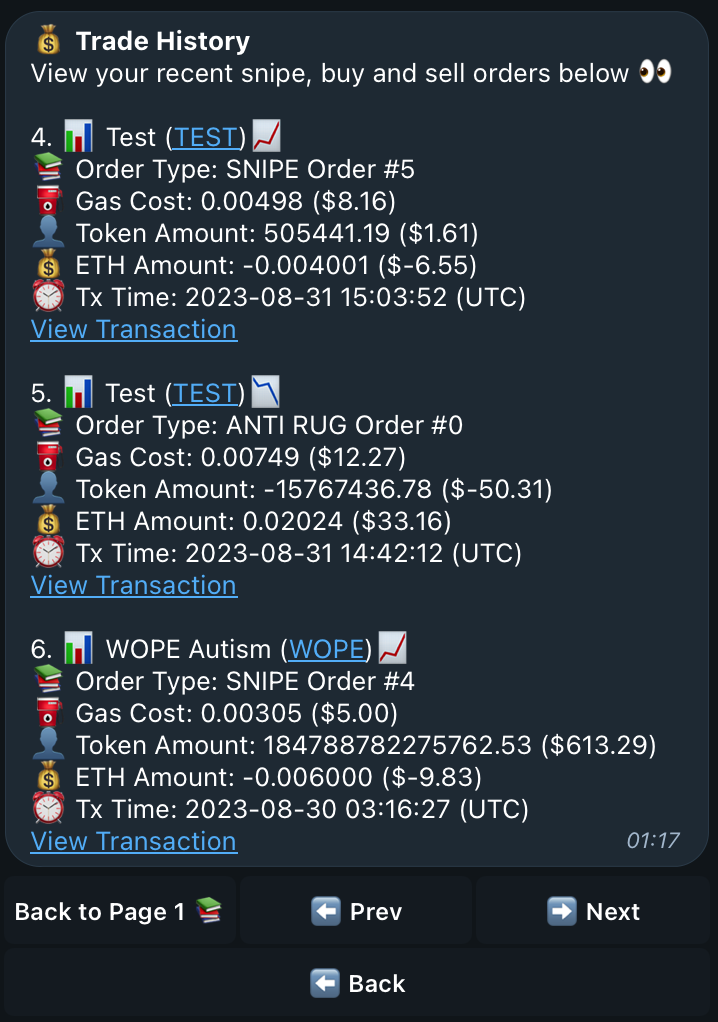
Welcome to your trade history! Every **Limit Order, Market Order and Snipe** will display on your trade history will **each order's important information** and a **link to the transaction** on Etherscan! There will be **3 trades shown** per page so they are easily viewable without making too long of a message - don't worry if yours doesn't look like this, thats because you **haven't made any trades** yet or **have under 3 trades** and can only see one page!&#x20;

***

## 📝 Displayed Trade Details

<figure><img src="https://i.gyazo.com/d271925e6d6f0292cdecf92cf30f6e10.png" alt="" width="563"><figcaption><p>Three trades shown on page one, each showing the trade's important details and statistics ⬆️ </p></figcaption></figure>
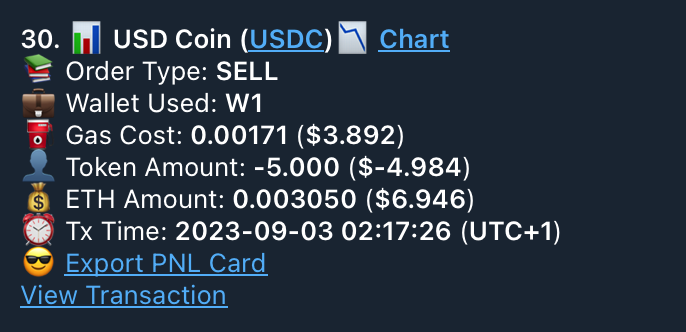
Shown above, are the **first three trades** made with Looter. Each trade shows important information such as: **the token name**, a quick-link to the **token's contract address**, the **order type** (limit, market, snipe), the **gas cost** for the order, **token/ethereum amount**, **the time this transaction was executed** and a quick-link to **the transaction on Etherscan**!&#x20;

{% hint style="info" %}
Order transaction times can be modified to fit your timezone! Head over to the User Settings page, where you can edit your timezone displayed within the bot. ⏰&#x20;
{% endhint %}

***

## 😎  Generating PNL Cards

PNL Cards?!?!!? What!? That exists with Looter?! Yes! And here's how to generate one! Generating PNL Cards can be done from interacting with sell transaction messages or done straight from Trade History page!&#x20;

<figure><img src="https://i.gyazo.com/ec4ea79cb33ac8b462b7624619701085.png" alt="" width="563"><figcaption><p>Generation can be completed from Trade History or successful Sell order messages 😎 </p></figcaption></figure>

Selecting 😎 Export PNL Card will generate your PNL card for this specific order in seconds! Now you're ready to flex those gains made with Looter! What do they look like you ask? 😈&#x20;

***

## 📚 Page Controls&#x20;

<figure><img src="https://i.gyazo.com/0322c1f6e9e0e23fa4711b20ec89071c.png" alt="" width="563"><figcaption><p>Page control buttons shown above ⬆️ </p></figcaption></figure>

These are your **page controls** to allow switching between **different pages of order history**, this is implemented to prevent long messages filling up your chatlog if you are an active user of Looter! 🕹 *(pretty straight forward, I don't think this needs explaining 😉 )*


# User Settings

Looter comes with some personalisation settings, lets show you how to change them to make Looter your very own! 😊

<mark style="color:orange;">`To begin changing your settings, select the "`</mark>👤 <mark style="color:orange;">`User Settings " button on the main page.`</mark>

***

<figure><img src="https://i.gyazo.com/537179363e565f3e6c4a6001996ccb74.png" alt="" width="563"><figcaption><p>Select this button from the homepage to begin changing your User Settings and personalising Looter as your own! 👍 </p></figcaption></figure>
***

## 👀 Viewing Current Settings

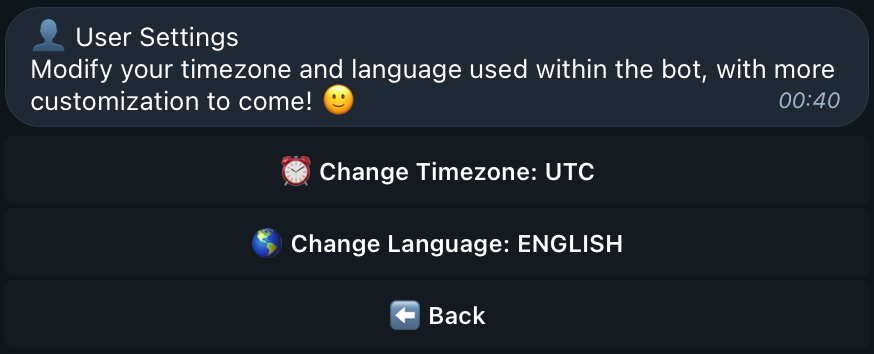
After navigating yourself to the **User Settings page**, you will be greeted with this message, where you can view your current settings and **change your timezone** and **language** within the bot! These are the current personalisation features we offer, but are **always looking** to include more! If you have any ideas you think would be a worthy addition to the bot, **get our attention** in the Telegram channel!&#x20;

***

{% embed url="<https://t.me/looter_discussion>" %}
Join our discussion Telegram to grab our attention with any ideas you may have! 💡&#x20;
{% endembed %}

<figure><img src="https://i.gyazo.com/8d173f4dee84cd18fd5ef54502997662.png" alt="" width="563"><figcaption><p>View your current user settings as shown above ⬆️ </p></figcaption></figure>
***

## ⏰ Changing Timezone

<figure><img src="https://i.gyazo.com/0b55096516d30c65f07a840befb64c71.png" alt="" width="563"><figcaption><p>After selecting the button, the page will update to where you can set the timezone you wish to use. ⏰ </p></figcaption></figure>

{% hint style="info" %}
Changing your timezone will make your trade history and order times match with the timezone you are in. Order times are a part of trade history and will show under each Limit Order, Snipe Order and Market Order you make within the bot.
{% endhint %}

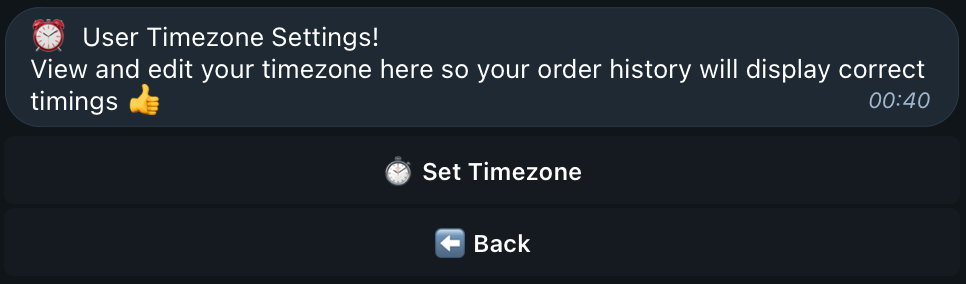
<figure><img src="https://i.gyazo.com/2d12f77219d16a68eff626fa1d06cf9d.png" alt="" width="563"><figcaption><p>Selecting the Set Timezone button will return this message. Lets learn how to change your timezone!</p></figcaption></figure>

Changing your timezone is done in plus and minus values based on the UTC timezone. As shown in the message above, UTC+1 is the timezone for the United Kingdom and to get the UK timezone within the bot, you simply just supply "+1" as the response to this message. After supplying your plus or minus value, your timezone will update and reflect in your User Settings and Trade History! ⏰&#x20;

***

## 🌍 Changing Language&#x20;

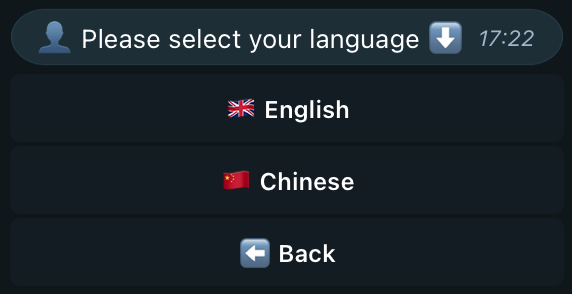
<figure><img src="https://i.gyazo.com/95867d8914f975324d96cee6e6279d1c.png" alt="" width="563"><figcaption><p>After selecting the button, the page will update to where you can set the language you wish to use. 🌍  </p></figcaption></figure>

{% hint style="info" %}
Changing language will update the entire bot to the language you have chosen. At the moment, supported languages are: English and Chinese. We are working to add as many languages as we can to allow as many people to use Looter as possible!&#x20;
{% endhint %}


# LOOTER Token

Explore the $LOOTER token and jump into its tokenomics, including its benefits, incentives, and long-term growth potential!

***

## ✍️ Contract Address

{% hint style="success" %}
$LOOTER Token Address: 0x000000000a1c6659ac226dBB1C5BDC648DF72E9e
{% endhint %}

The $LOOTER token is a fundamental part of Looter's user ecosystem. It has been designed and distributed to ensure the **long-term growth and sustainability of the project**. By holding $LOOTER, users gain access to a range of benefits, **including revenue sharing, exclusive incentives, and participation in project decisions.**

***

## 💎 Token Revenue Share

By holding the $LOOTER token, you unlock access to **40% of the project's total revenue**, which is distributed proportionally in $ETH based on the number of tokens you hold. To qualify for this revenue share, you must hold a minimum of **50,000 $LOOTER tokens**.

Revenue calculations occur **every three hours**, determining eligibility and distributing funds accordingly. Revenue share can currently be claimed in $ETH on the Ethereum blockchain, and **we cover gas fees**! You can claim your share once per day, with a **minimum claim amount of $100.**&#x20;

***

## 💰 Earnings Calculation&#x20;

{% hint style="info" %}
To calculate your estimated earnings from $LOOTER revenue share, follow the steps below:
{% endhint %}

Determine the percentage of eligible supply you hold for revenue share:

```iecst
(Token Holding Amount  / Eligible Token Amount) x 100
```

Estimate your earnings using your calculated holding percentage and revshare pot total:

```iecst
(Revenue Share x % of Eligible Tokens) / 100
```

***

{% hint style="info" %}
Visit [app.looter.ai](https://app.looter.ai) to check your revenue share eligibility and claim! 💰&#x20;
{% endhint %}

For those looking to stay updated on our metrics and performance, Dune provides an in-depth look on Looter's revenue data and volume count. Here, you can track real-time trading volume, revenue figures, and many other important statistics that showcase the growth of Looter's ecosystem.

{% hint style="info" %}
Visit [dune.com/whale\_hunter/looter](https://dune.com/whale_hunter/looter) to view statistics, such as volume & user count 📈&#x20;
{% endhint %}

***

## 🪙 Looter Tokenomics

<table data-full-width="true"><thead><tr><th width="140"> </th><th width="166">Supply Allocation</th><th>Vesting</th></tr></thead><tbody><tr><td>Presale</td><td>15%</td><td>No Vesting, 0.2% Per Allocation</td></tr><tr><td>Team</td><td>10%</td><td>1 Year Cliff, 3 Year Linear </td></tr><tr><td>Liquidity</td><td>7.5%</td><td>Initial 2 Year Lock</td></tr><tr><td>Treasury</td><td>37.84%</td><td>2% Unlocked Monthly <br>Unused Tokens to be Relocked or Burned</td></tr><tr><td>Burned</td><td>32.76%</td><td></td></tr><tr><td>Advisors</td><td>2%</td><td>0.5% at TGE, 1.5% Linear for 11 months </td></tr><tr><td>Airdrop</td><td>4%</td><td>No Vesting</td></tr></tbody></table>

The total supply of $LOOTER is capped at **100,000,000**. Initially, 27% of this supply will be in circulation, corresponding to a market cap of **approximately \~$200,000**. Treasury unlocks will be strategically utilised for community and user incentives, with any **unused tokens either being relocked or burned** to maintain supply control.

## 🔥 Burnt Token Supply

<figure><img src="/files/nI7I2IpID52bA6ZRz0XM" alt=""><figcaption><p>$LOOTER Token's Holders Page</p></figcaption></figure>

Previously, our revenue share model for $LOOTER token holders was based on a buyback and burn mechanism. This approach aimed to **increase the token’s value by reducing the overall supply**. Through this initiative, we successfully burned **7.79% of the total $LOOTER supply** and an impressive **28.9% of the circulating supply**. However, in response to holder feedback, we have transitioned to a traditional revenue share model. \
\
After transitioning to the new revenue share model, a **substantial amount of $LOOTER** has continued to be burnt thanks to **various incentives and recommendations** from our $LOOTER Whales! 🐳 \
\
Below is a table showcasing the **$LOOTER token burns and the origin of the burnt tokens**, our current total burn amount is **34.76%** of the $LOOTER supply! 🔥&#x20;

<table data-full-width="true"><thead><tr><th>Burn Amount </th><th>Origin</th></tr></thead><tbody><tr><td>7.79% of $LOOTER</td><td>Buy Back &#x26; Burn Revenue Share Model </td></tr><tr><td>24.97% of $LOOTER</td><td>Burnt from $LOOTER Treasury </td></tr><tr><td><strong>Total: 32.76% $LOOTER</strong> </td><td><strong>Total: 32.76% $LOOTER</strong> </td></tr></tbody></table>

***

## 🏦 Treasury Wallets

<figure><img src="/files/o1qzp9Tt3sHiHpXZXMNX" alt=""><figcaption></figcaption></figure>

<figure><img src="/files/Js893U91ktGgiXT8W9PU" alt=""><figcaption><p>$LOOTER Token's Holders Page</p></figcaption></figure>

Aligned with the $LOOTER tokenomics above, Treasury wallets are tagged on [Etherscan](https://etherscan.io/token/0x000000000a1c6659ac226dbb1c5bdc648df72e9e#balances) to ensure transparency.&#x20;

To further ensure the stability of the $LOOTER token, any **unused/unlocked tokens will either be relocked or burned**. This approach helps maintain a controlled supply, supporting price stability and addressing holder concerns effectively.

***

## 🐳 Looter Whales

For our $LOOTER Whales, those with **over 200,000 $LOOTER** tokens are granted exclusive access to our whale chat on Telegram! This chat offers a host of benefits, including regular detailed updates on project statistics, ensuring you stay informed about every development we make!&#x20;

In addition, you'll receive close support from our core team members, giving you direct lines of communication for any questions or insights regarding the project. As a $LOOTER whale, you'll have the opportunity to **actively participate in key project decisions**, provide input on updates and our development pipeline, as well as **help shape the core values and future direction of LOOTER!**

{% hint style="info" %}
Join the $LOOTER Whale Chat here! <https://guild.xyz/looter-whales> 🐳&#x20;
{% endhint %}

***


# Referral Program

Discover how you can kickstart your earnings with Looter from our Two-Layer Referral Program and Token Call Fee share. Let us guide you through the process! 📚

## 👥 Looter's Referral Program

We are happy to announce our referral program which includes **two layers of revenue sharing**. Get a share of **all bot fees for referred users** who are trading with Looter under your invite link, and even get a share of fees earned from invites of invites! Let's dive into each one! 💰&#x20;

<mark style="color:orange;">`To view your referral link, run /invite from the Looter Trading Bot 🤖`</mark>

***

## [👤](https://emojipedia.org/bust-in-silhouette) First-Layer Referral Fees (Direct) &#x20;

When users sign up to the Looter Trading Bot **directly using your invite link**, you’ll receive a **10% share of their trading fees** as part of our referral program.

## 👥 Second-Layer Referral Fees (Indirect)&#x20;

When users sign up to the Looter Trading Bot using the **invite link of someone you referred**, you will receive a **1% share of their trading fees** as part of our Two-Layer referral program.&#x20;

***

## 🗣️ Token Call Fees

Token Call Links allow you to share a **direct-buy link straight to Looter** among friends, on X, in a Telegram Call channel and more! By sharing or integrating Token Call links to Looter, we **offer a 10% share of fees earned from users** who have transacted on that specific Call Link.

<mark style="color:orange;">`To generate a Call Link, run /call <Contract Address> on Looter 🤖`</mark>

<figure><img src="/files/vKHUzdHu0qYtUjakr86n" alt="" width="563"><figcaption><p>Running the command will show the message shown above with your token call link to be shared! 💰 </p></figcaption></figure>

***

## 💰 View Referral Rewards

You are two clicks away from viewing your accrued referral fees! Let's learn how! 💰&#x20;

<mark style="color:orange;">`Select "👤 User Settings" from the homepage, then select "👨‍💻 User Statistics" which will pull up your personal Looter Statistics along with your Referral Earnings Statistics.`</mark>&#x20;

<figure><img src="/files/wpvLaqcjOqlzASQfujuW" alt="" width="375"><figcaption><p>If not all chains are displaying on the page above, not to worry, only <br>chains with fees earned will display on the statistics page! 💰 </p></figcaption></figure>

***

## 💳 Withdraw Referral Rewards

To make a withdrawal, **simply select the chain you wish to withdraw earnings** from with the buttons below the "👨‍💻 User Statistics" page, accessed through "👤 User Settings" from the Telegram bot homepage.

<figure><img src="/files/agm962lUrQlfJ5mYxdE0" alt="" width="375"><figcaption><p>Buttons to claim rewards on each chain will display once the $100US minimum has been met. 💰 </p></figcaption></figure>

Rewards for a referral's transactions will be kept on the **same chain they were earned**. For example if one of your referrals makes a trade on Solana, the earned rewards can **only be withdrawn on Solana.**

{% hint style="info" %}
Referral Reward withdrawals are gas free, however there is a $100US minimum per withdrawal and buttons to do so will only show once this threshold has been met.
{% endhint %}